Adding Items to the File Explorer
Put items in the File Explorer to work with their structure: properties, BOM, export, Pack and Go. There are three ways.
| Way | How |
|---|---|
| The form | Click Add to File Explorer on the hover buttons, or right-click an item box and choose Add to File Explorer.... |
| Drag item boxes | Drag item boxes onto the File Explorer. No form. See Dragging Item Boxes. |
| Drop from Windows | Drag .sldprt or .sldasm files from Windows Explorer onto the File Explorer. |
The form
The form Add 1 item to File Explorer asks what to add.
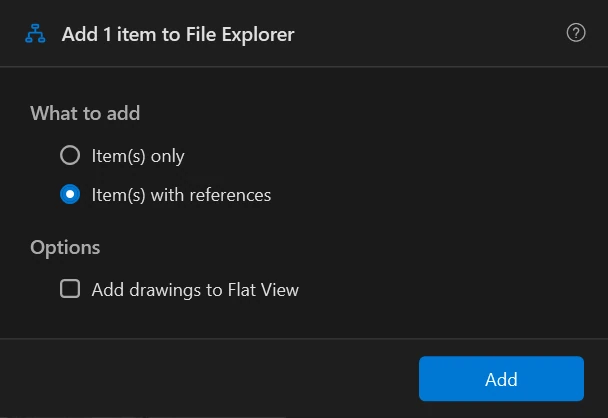
| Choice | Adds |
|---|---|
| Item(s) only | Only the selected items, without their references. |
| Item(s) with references | The selected items and all files they reference. This is the default. |
| Add drawings to Flat View | Also the drawings of the items, as rows in the Flat View. |
Click Add to add to the list. Click Clear and Add to empty the list first. Clear and Add only shows when the list has items. Enter = Add, Esc closes the form.
Good to know
- An item that is already at the top level of the list, in the same configuration, gets no second row. Its quantity goes up by one. The status bar tells you.
- A drag never asks. It always adds with references and drawings. Release on the upper half to add, on the lower half to replace the list.
- A file from Windows whose folder is not in the project yet: the Import Folder form adds the folder to the active page first.
- A folder dropped from Windows is added to the active page, not to the list.
- The File Explorer comes to the front after an add.
- The choice under What to add is kept until you close Vitreo. Add drawings to Flat View is saved.