Custom Images
Show your own picture instead of the SOLIDWORKS preview. Use it for dummy parts that only complete a BOM, or to show a rendered picture.
To give a file a custom image:
- In the folder of the SOLIDWORKS file, make a folder named Img.
- In Img, make the folder Parts, Assemblies or Drawings, for the type of the file.
- Save the picture there with the name of the file. Use PNG or JPG.
| SOLIDWORKS file | Custom image |
|---|---|
| C:\Projects\Frame\Bracket.SLDPRT | C:\Projects\Frame\Img\Parts\Bracket.png |
| C:\Projects\Frame\Assembly-100.SLDASM | C:\Projects\Frame\Img\Assemblies\Assembly-100.jpg |
The item box shows the picture at once. A gray picture badge at the top right tells you the image is a custom image. Point at the badge to see the path of the picture.
Folder
- D:\Projects\Frame
 Bracket.SLDPRT
 Assembly-100.SLDASM
- Img
- Parts
- Bracket.pngyour picture
- Assemblies
- Assembly-100.jpgyour picture
→used instead of the
SOLIDWORKS preview
Item box of Bracket
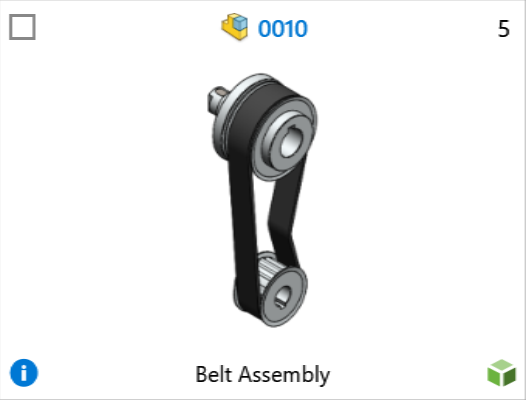
The gray picture badge shows the picture is your own.
Good to know
- The picture is used in the item boxes, the BOM and property grids, and on the web page of Vitreo Web.
- A name with the SOLIDWORKS extension also works, for example Bracket.SLDPRT.png.
- The SOLIDWORKS file itself does not change.
- Custom images are on by default. Turn them off with Settings > Options > Use override images.