Tools Menu
The Tools menu in the command bar changes the properties of every file in the grid at once. Every tool only stages the changes. Nothing is written until you click Save.
Sync properties with columns
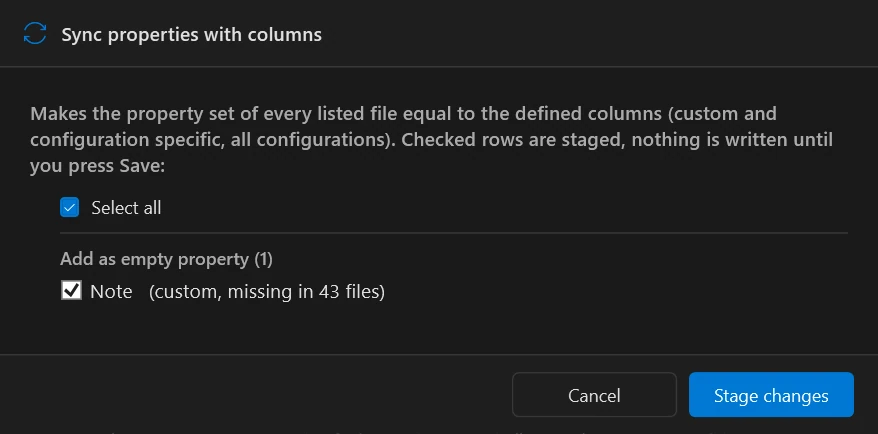
Makes the properties of every file match your columns. Properties that have a column but are missing in a file are added with an empty value. Properties in a file that have no column are removed. This works for custom and configuration specific properties, in all configurations.
To sync the properties with the columns:
- Click Tools > Sync properties with columns.
- Check the list. Add as empty property shows each missing property and in how many files it is missing. Remove from the files shows each property without a column and in how many files it is.
- Uncheck the rows you want to keep as they are.
- Click Stage changes.
- Check the grid, then click Save.
Important Remove from the files also removes properties you never see in the grid, because they have no column. Check this list before you click Stage changes.
Copy active configuration properties to custom properties
Copies the configuration specific properties of the active configuration of each file to custom properties with the same name. Formulas are copied as formulas.
| Choice | What it does |
|---|---|
| Keep existing values | Fills only custom properties that are missing or empty. |
| Overwrite existing values | Also replaces custom properties that already have a value. |
When a copied property has no custom property column yet, Vitreo asks Add custom property columns. Click Add columns to see the copied values before you save.
Good to know
- The tools act on every file in the grid, also on rows you hid with the bottom bar. Locked files are skipped.
- Each tool is one step for Ctrl+Z. Undo All also cancels it.
- The status bar tells you how many properties and files are staged.