Projects
The Projects pane on the left holds your projects, their pages and the home items of each page. Click the folder icon at the top of the left icon strip to open it.
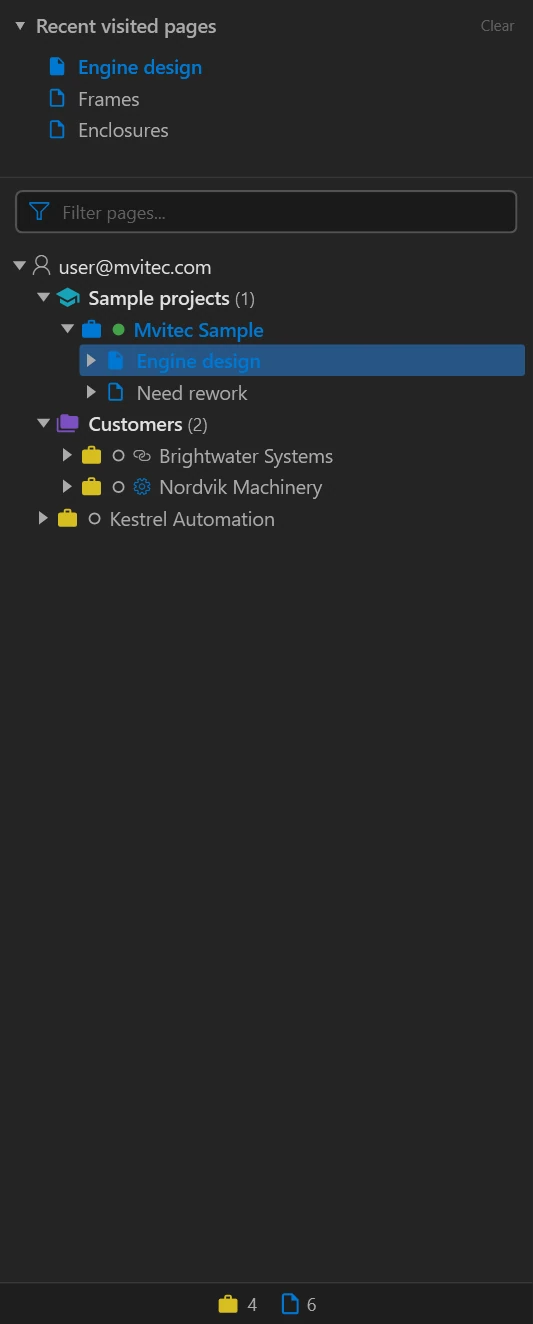
| Projects, Pages and Home Items | The idea behind Vitreo: how folders become item boxes. |
| Creating a Project | New project: name, SOLIDWORKS version, templates, numbering, group. |
| Projects Toolbar and More Options | New project, expand, collapse, go to active page, the more options menu. |
| Project Menu | Every right-click command on a project. |
| Pages | Add, rename, delete and activate pages. The page menu. |
| Home Items | Add, remove, move and copy the items of a page. |
| Adding Folders and Files | Drag and drop, Add Items, the Import Folder form, Choose your columns. |
| Recent Pages and Filter Pages | Jump back to a page, find a page by name. |
| Project Groups | Group = the company. Settings for all projects. |
| Shared Projects | Share a project, join with a share code, refresh, stop or leave. |
| Export and Import Projects | Zip a project or page, import it on another PC. |
| Import Netach Viewer Projects | Bring projects over from Netach Viewer. |
| Project Load State | The colored dots, first load, fast start. |