Missing and Not Loaded Items
Some item boxes show a folder icon, the file name and the folder instead of a preview. Vitreo knows the file, but cannot show it. There are two cases.
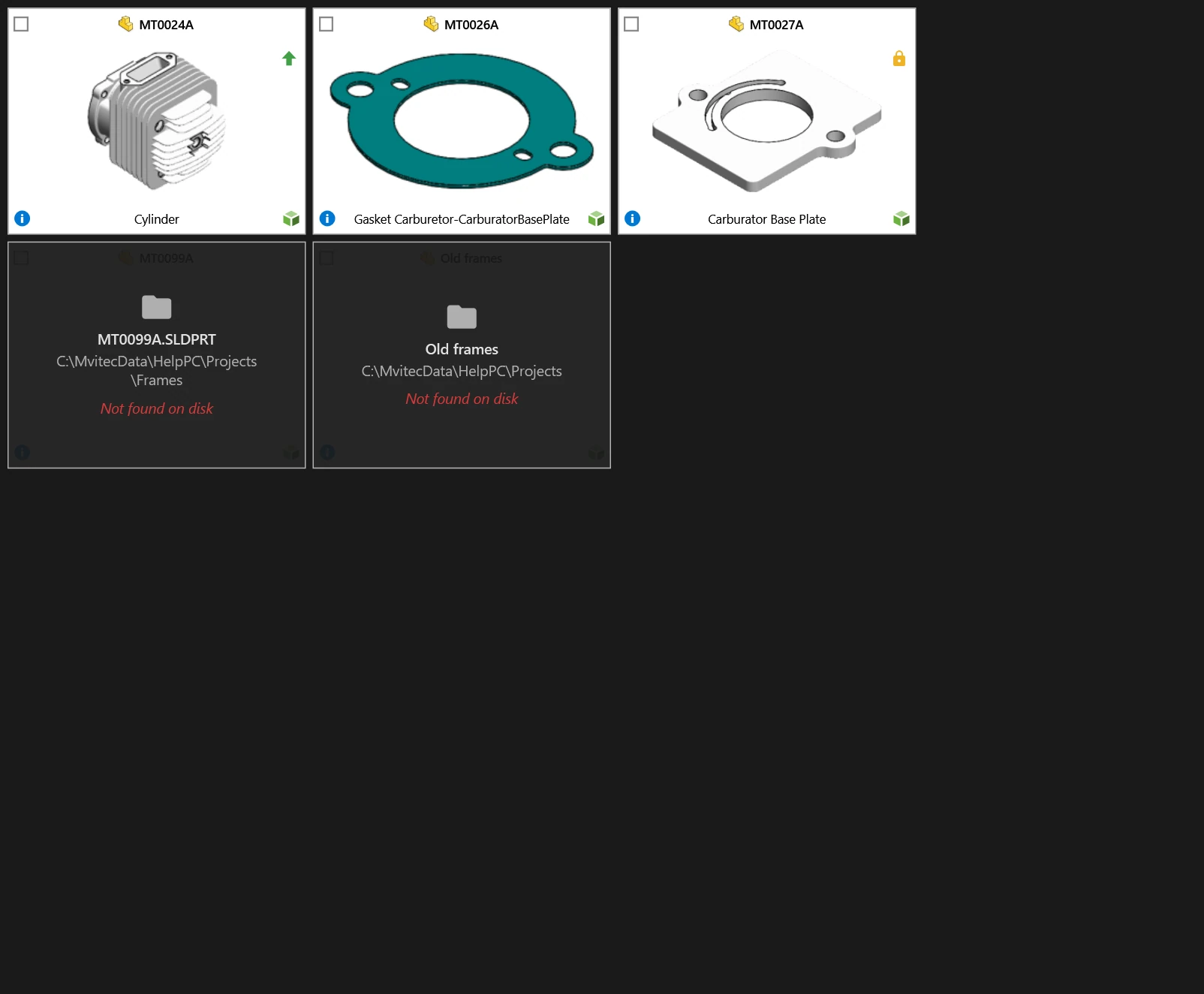
| You see | What it means | What to do |
|---|---|---|
| Blue Load folder button | The file exists, but its folder is not part of the project. This happens inside an assembly that uses files from another folder. | Click Load folder. The Import Folder form adds the folder to the project. See Adding Folders and Files. |
| Red Not found on disk | The file is not where Vitreo expects it. It was moved, renamed or deleted. | Right-click the item box and choose Change folder location. See Change Folder Location. |
The menu of a missing item
Right-click an item box that is Not found on disk. The menu has only these commands:
- Change folder location
- Remove from page: takes this item off the active page. No file is deleted.
- Remove all N missing items from page: takes every missing item off the active page at once. Shows when more than one item is missing.
The two Remove commands are only there on the home level of a page.
Good to know
- When a file is deleted or moved while you look at it, its item box turns red at once. When the file comes back, the item box comes back by itself. See Live Changes.
- Load folder on a folder that is not on this PC shows Folder not found.