Rename Rules
A rename rule says which old property names become one new name. You make the rules once. Vitreo saves them with the project.
To add a rule:
- In Rename Tools, under Rename rules, click Add.
- In Old property names, type the old names, separated by a comma. For example: Descr, Desc. Or pick a name from the list. A picked name is added to the names already there.
- In New property name, type the new name or pick one from the list.
- Choose the Property type.
- Click Save.
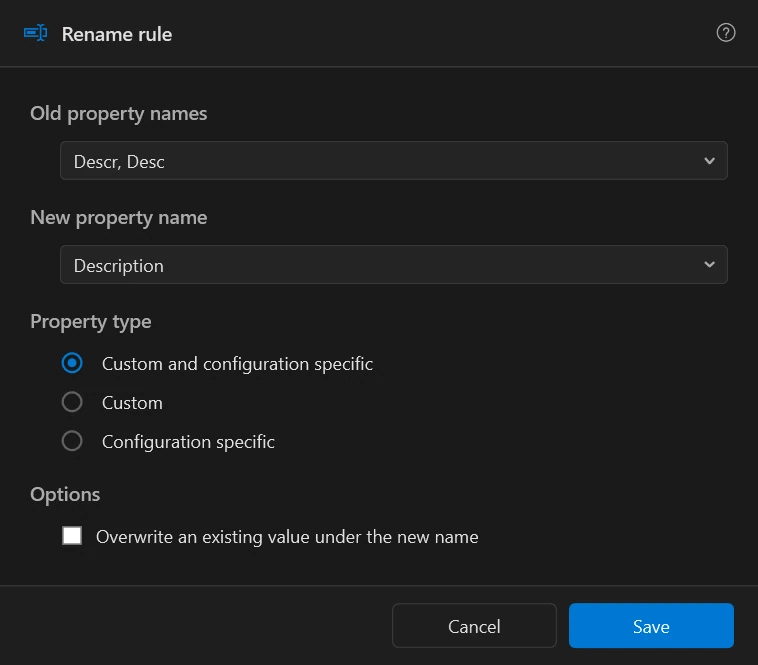
The Rename rule dialog box
| Option | What it means |
|---|---|
| Old property names | The names to replace. Separate them with a comma. Upper and lower case do not matter. The lists show the property names of the loaded files. |
| New property name | The name every file gets instead. |
| Property type | Custom and configuration specific (default), Custom or Configuration specific. Configuration specific works in every configuration of a file, not only the active one. See Custom and Configuration Specific Properties. |
| Overwrite an existing value under the new name | Off by default. Off: a value that a file already has under the new name stays. On: the old value replaces it. |
Important The old property is always removed from the file, also when the new name already has a value and you did not check Overwrite.
A file that has two old names of one rule, for example both Descr and Desc, loses both in one run. The new name gets the value of the old name that comes first in the rule.
Save is available when there is a new name and at least one old name that is different from it.
Edit or delete a rule
- To edit: click the pencil on the rule row, double-click the row, or select it and press Enter.
- To delete: click the red bin, or select the row and press Delete. Click Delete to confirm. Deleting a rule does not change any file.
Good to know
- A row shows a green tag for custom properties and a blue tag for configuration specific properties. A rule for both shows both tags.
- Point at a rule row to see all its details.
- The rules run on every part and assembly in the File Explorer. Drawings are not changed.