Status Bar Chips
Chips are small amber signs in the status bar. They show only when something needs your attention. Click a chip to see what is wrong and how to fix it.
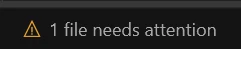
| Chip | What it means | What to do |
|---|---|---|
| 1 file needs attention / N files need attention | Vitreo found problems in SOLIDWORKS files of the active project. They can cause wrong quantities in the BOM. | Click the chip. The form lists the problems and what to do for each one. See Files Need Attention. |
| 1 folder not found / N folders not found | Files of the project are not where they were. Vitreo found where they may be now. | Click the chip, check the new places and click Fix. See Folders Not Found. |
| Document Manager missing / eDrawings missing | A SOLIDWORKS component is not installed on this PC. | Run the Mvitec installer. See System Requirements. |
Good to know
- The problem list is stored. The chip is still there after a restart until the files are fixed.
- A problem disappears when Vitreo reads the fixed file. Fix it in SOLIDWORKS and save.
- The problem form can open by itself after a sync. Turn that on or off with Show this after a sync in the form, or with Show file problems after a sync in Settings > Options.