Window Layout
The Vitreo window has five parts. The command bar on top changes with the tab you pick. The panes below show what that tab needs.
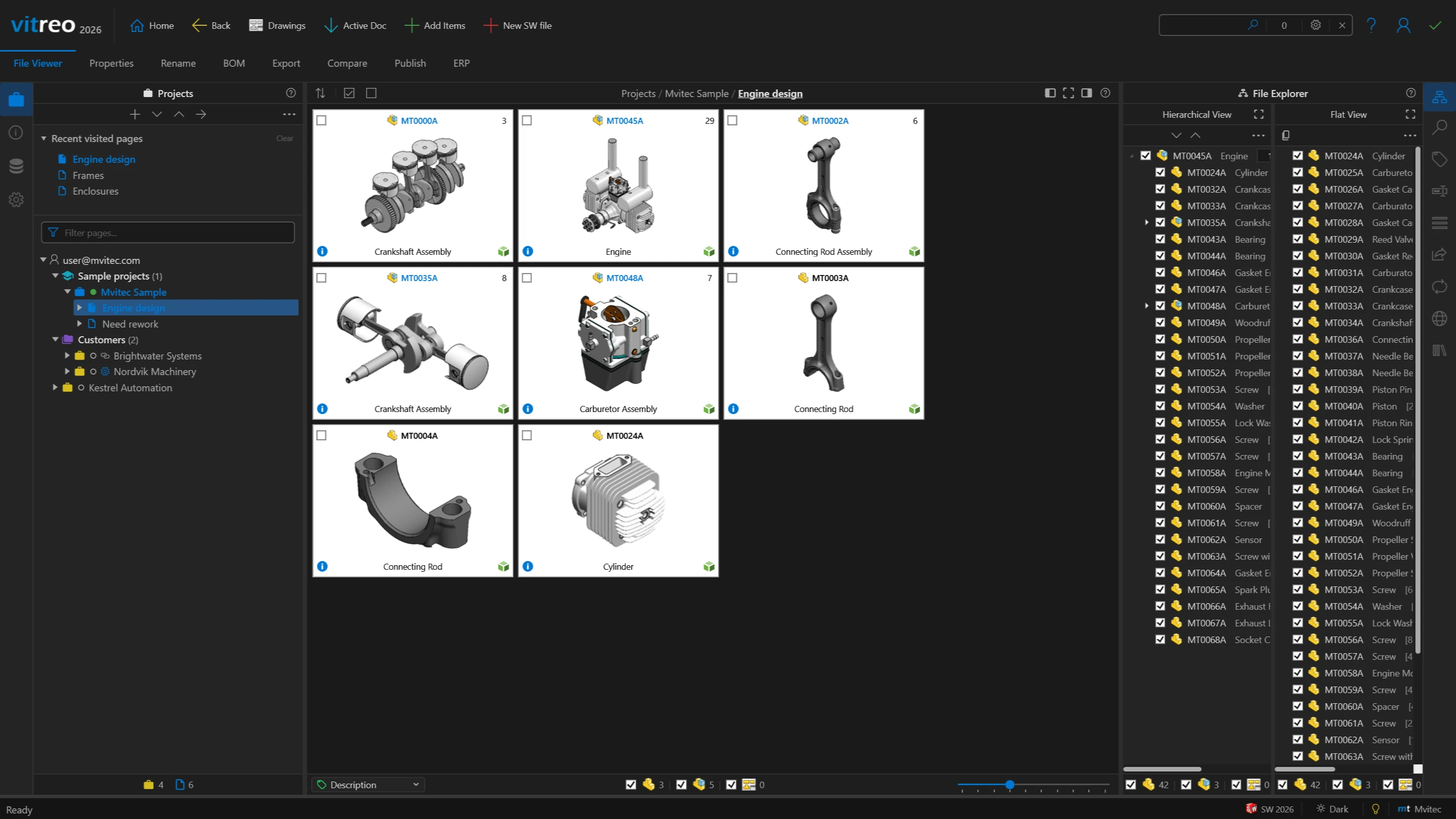
| Part | What it does |
|---|---|
| 1. Command bar | The buttons of the active tab, the tabs, the search box, Help, Account and the update badge. See Command Bar. |
| 2. Left panel | Projects, Item Info, Database and Settings. See Left Panel. |
| 3. Center | The main work area of the tab: item boxes in the File Viewer, a grid in Properties and BOM, and so on. On the File Viewer the navigation bar sits on top of it. |
| 4. Right panel | The File Explorer, the search pane and the tools of the active tab. See Right Panel. |
| 5. Status bar | What Vitreo is doing, warnings, the SOLIDWORKS instances and the theme switch. See Status Bar. |
A thin blue line between the center and the status bar shows the progress of long jobs. See Progress and Stop Process.
What each tab shows
| Tab | Center | Right panel |
|---|---|---|
| File Viewer | Item boxes | File Explorer |
| Properties | Property grid | Property Manager Tools |
| Rename | Rename list | Rename Tools |
| BOM | BOM grid | BOM Tools |
| Export | Export design and result | Export Tools |
| Compare | A and B | Compare Tools |
| Publish | Item boxes | Publish Tools |
| ERP | ERP design and result | ERP Tools |
On Rename, Export and Compare the left panel shows Item Info: click a row to see that file.
Good to know
- Every pane, most center toolbars and most dialog boxes have a small question mark on the right of their title bar. Click it to open the help page about that part of Vitreo.
- Drag the line between two panes to change their width. Hide the side panes to give the center the whole window. See Panes and Splitters.