Newer Revisions
A green up arrow means a home item has a newer revision in its folder. For example, AB0001A is on the page and AB0001B was saved in the same folder. Click the arrow to replace the old home item with the newer one.
Folder
 AB0001A.SLDPRThome item on the page
- AB0001B.SLDPRTnewer revision
The page
- AB0001Aclick the arrow
After
- AB0001Bhome item on the page
The check needs a Numbering System with a Revision chip. Without one, you see no arrows.
To replace home items with their newer revision:
- Click the green arrow. You find it on the item box, after the page name and after the home item in the Projects pane.
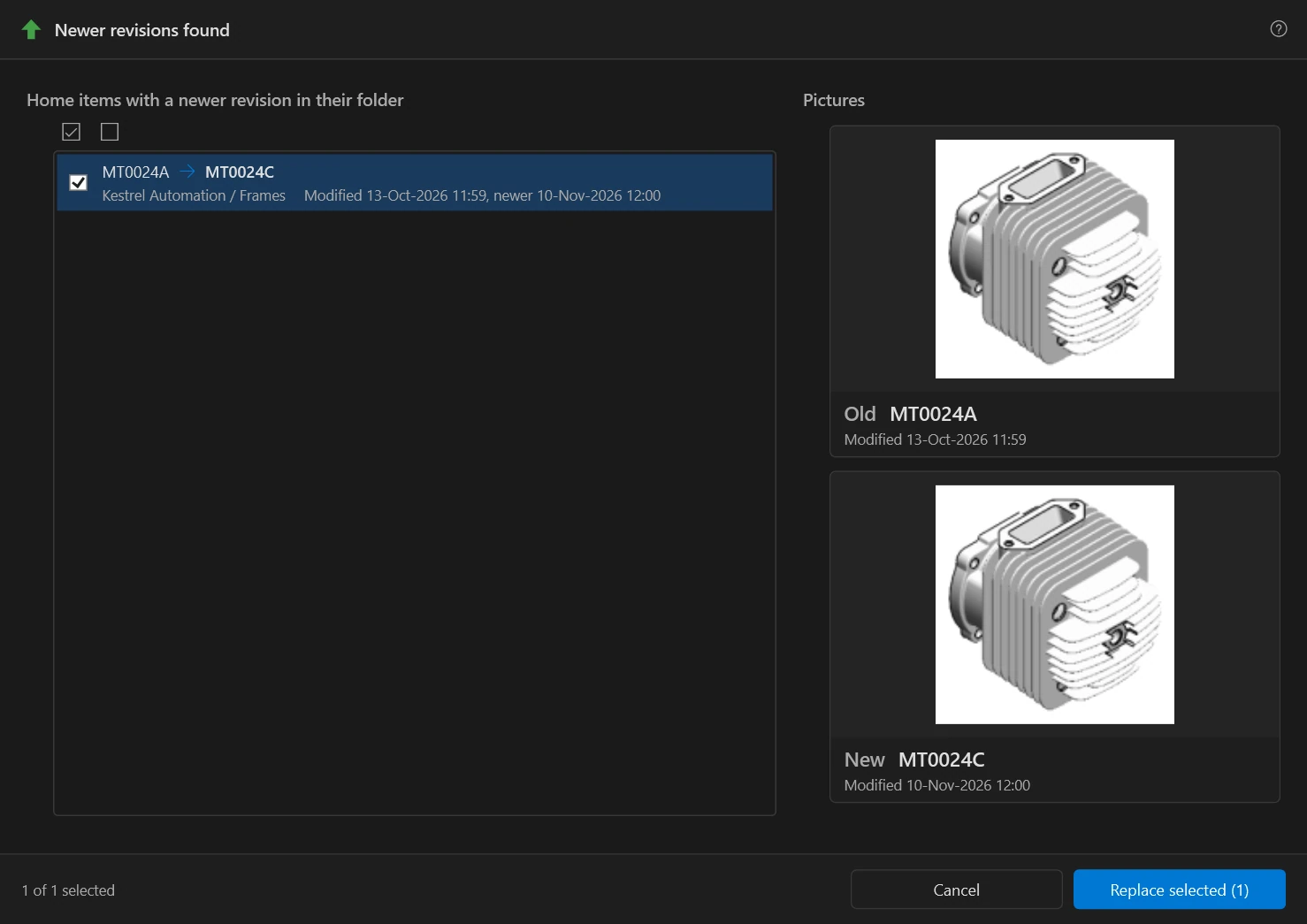
- The Newer revisions found form lists the home items, all checked.
- Click a row to see the old and the new picture side by side.
- Clear the rows you want to keep as they are.
- Click Replace selected.
What Replace does
The newer revision takes the place of the old one on the page. The order of the home items stays the same. When the newer revision is already on the page, the old one is only removed.
Note Replace changes only the list of home items. No file is renamed, moved or deleted.
Check other projects
Vitreo checks the active project after every page load. To check more:
- Right-click a project and choose Replace newer revisions... for all its pages.
- Click More options > Replace newer revisions in all projects... for every project.
- Right-click a page and choose Replace newer revisions (N) for that page.
A project that is not active is read from the database first. That can take a moment.
Good to know
- Both files must be in the same folder and have the same file type.
- Vitreo compares revisions of the same length: B after A, 03 after 02.
- When both revisions are home items on the same page, there is no arrow. Vitreo takes that as your choice.
- The check runs again when files are added, renamed or deleted in the folder.
- In the form, Space checks or clears the selected row. Enter replaces. Esc cancels.