Hierarchical View
The Hierarchical View is the left half of the File Explorer. It shows the structure like the design tree in SOLIDWORKS.
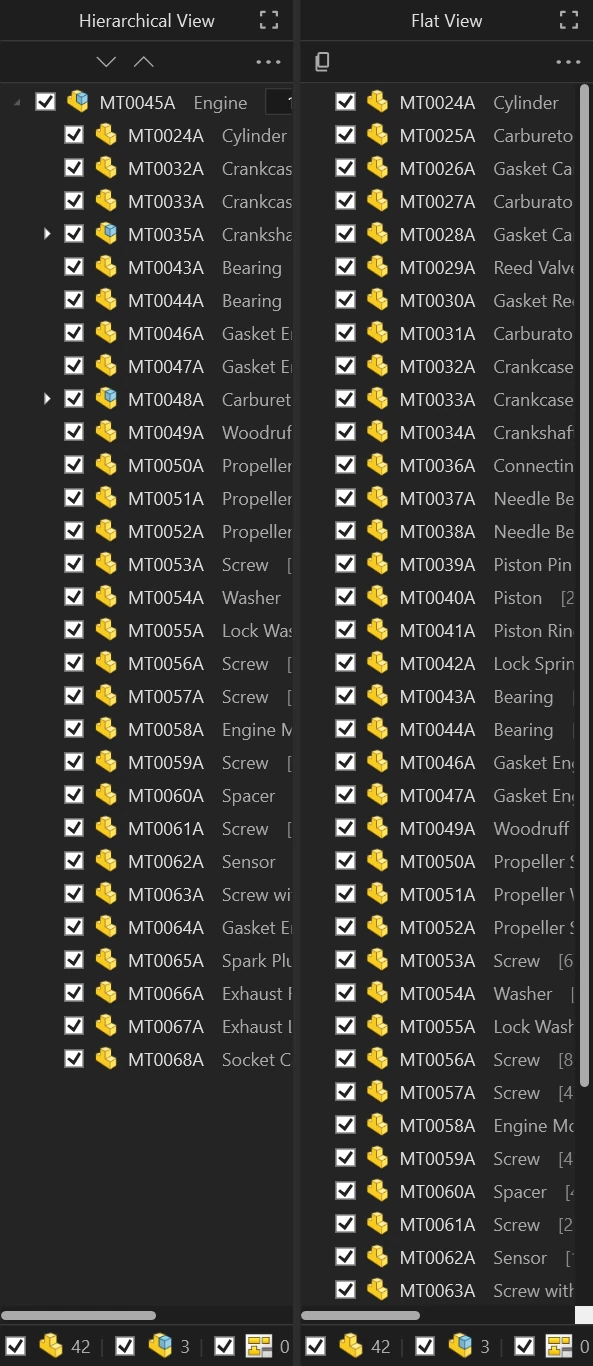
Each row shows a check box, the file type icon, the name, the description in gray, the quantity inside its parent as [2], and the configuration as [Default]. A file that is missing on disk is red.
| Control | What it does |
|---|---|
| Expand one level | Opens one more level of every row. |
| Collapse one level | Closes the deepest open level. |
| More options | Clear list and Export tree. |
| Expand. Restore panels | The corner button in the title bar. Gives the File Explorer the full width, or brings the other panels back. |
The quantity box
Each top-level row has a quantity box. It multiplies every item under it in the Flat View, the BOM and the exports.
To build a quantity:
- Click the quantity box of a top-level row.
- Type a number, 1 or higher.
- Press Enter, or click somewhere else. Press Esc to cancel.
Good to know
- An item used in several places shows in every place it is used.
- Selecting a row shows the file in the Item Info pane.
- Drag the line between the two views to change their widths. Double-click it to make both halves equal. The width is remembered.
- The quantity box is read-only when your edition does not include the BOM. See Editions.