Backup and Restore
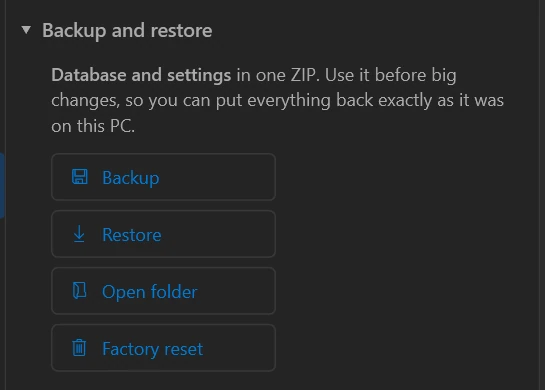
A backup is one ZIP file with the database and all settings: projects, pages, columns and templates. Make one before big changes, so you can put everything back exactly as it was on this PC.
To make a backup:
- Open the Settings pane and click Backup and restore.
- Click Backup.
- Choose where to save the ZIP file. Vitreo suggests its Backups folder. The name holds the date and time.
- Click Save. Vitreo shows where the backup is saved.
To restore a backup:
- Click Restore and choose the backup file.
- Click Restore to confirm.
- Answer if Vitreo must first make a backup of the current state. Choose Yes when you are not sure.
Restore by drag and drop
Drag a backup ZIP file from Windows Explorer onto the Vitreo window. The window shows Drop to restore backup. Drop the file, and the same questions as Restore follow.
Factory reset
Factory reset removes all data and settings of Vitreo on this PC. Vitreo starts again as if it was just installed. Vitreo asks first if it must make a backup.
Important A factory reset also replaces your settings on the server. Your other PCs then get the default options too. Without a backup, a factory reset cannot be undone.
Shared projects you are a member of come back from the server after the reset. Your SOLIDWORKS files are never deleted.
Good to know
- Open folder opens the Backups folder in Windows Explorer.
- Vitreo never deletes a backup by itself.
- Restore also accepts an older backup of the database only (.litedb). Your settings stay as they are then.
- Passwords of publish shares come back only on the same PC and the same Windows user.
- While a backup or restore runs, Vitreo does not react to clicks and keys.
- For the settings only, without the database, use the Settings History.