Checking the File List
The center of Rename properties lists every part and assembly in the File Explorer. Each row says what the rules change in that file. Nothing is written yet, so you can check first.
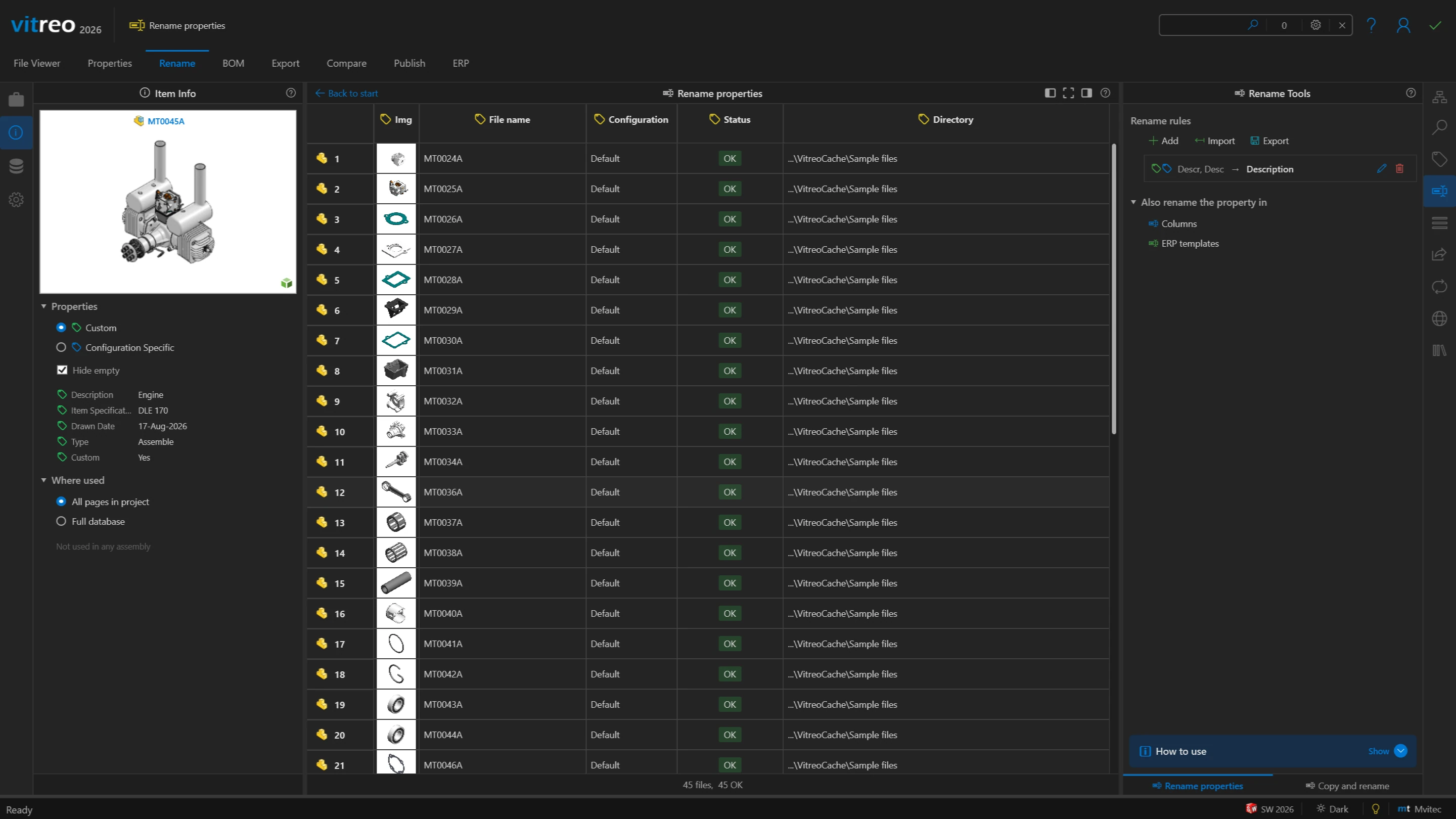
Columns
| Column | Shows |
|---|---|
| Img | The preview picture. |
| File name | The part or assembly. |
| Configuration | The active configuration. |
| Status | What happens to this file. Point at it to see each change. |
| Directory | The folder of the file. |
Click a column header to sort.
Status
| Status | Meaning |
|---|---|
| Needs rename | The file has an old property name. The run writes it. |
| OK | No old property name in this file. Nothing to do. |
| Read only | The file is read-only, open read-only in SOLIDWORKS, or in use by another user. It cannot be written. |
| Missing | The file is not on disk. |
| Done | The run renamed the property. |
| Failed | The run could not write the file. Point at the status to see why. |
Point at a status to see each change, for example Descr to Description. With Description kept, Descr removed, the file already has a value under the new name. That value stays and the old property goes. See Rename Rules.
Good to know
- The line under the list counts the rows, for example: 12 files, 3 need rename, 9 OK.
- No files? Check items in the File Explorer first.
- No rules? Add a rule in Rename Tools first.
- Configuration specific rules only see the configurations Vitreo has read. The tooltip then says: "Other configurations are read when the file is synced again."
- Right-click a row to open the file in SOLIDWORKS or Windows Explorer, or to copy the path or name.