ERP Overview
The ERP tab turns the structure in the File Explorer into the file your ERP system imports. An ERP template describes that file once. After that, one click writes it.
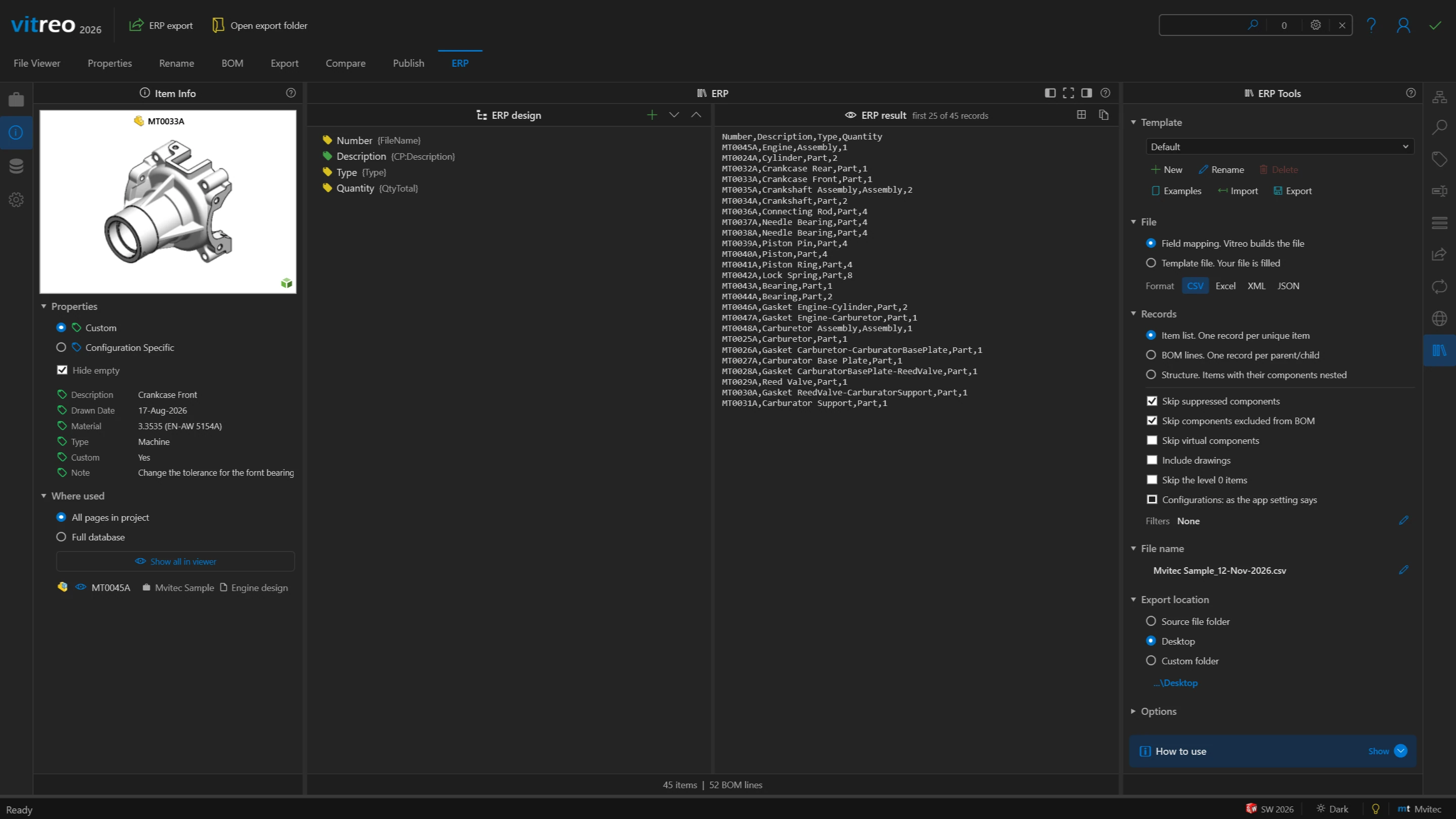
To write your first ERP file:
- Put the assembly in the File Explorer. Only the checked items are written, like for the BOM.
- Click the ERP tab.
- In the ERP Tools pane, under Template, click Examples and choose a ready template. Or keep the template you have.
- Set the fields in the ERP design. Right-click to add a field, double-click to edit one.
- Check the ERP result. It shows exactly what the file will hold.
- Click ERP export in the command bar.
Two ways to describe the file
Under File in the ERP Tools pane you choose one of two ways:
| Way | When to use it |
|---|---|
| Field mapping. Vitreo builds the file | Your ERP system reads a simple table. You make a list of fields: the name your ERP system expects and the Vitreo value. Vitreo writes CSV, Excel, XML or JSON. See Field Mapping. |
| Template file. Your file is filled | Your ERP system wants its own file layout. You give Vitreo an XML, JSON or CSV file in that layout, with tokens where the data goes. See Your Own Template File. |
The parts of the tab
| Part | What it does |
|---|---|
| ERP design (center, left) | The fields of the file, or the structure of your template file. |
| ERP result (center, right) | The file as it will be written. See The ERP Result. |
| ERP Tools pane (right) | Template, file type, records, file name, export location and options. |
Good to know
- ERP templates are shared by all projects. BOM and export templates belong to one project.
- The ERP tab does not need SOLIDWORKS. It reads the data Vitreo already has.
- The How to use card at the bottom of the ERP Tools pane repeats these steps.
← ERP
ERP Templates →