Find and Replace
Replace a text in many cells at once.
To replace text:
- Select the cells, or click one cell of the column you want to change.
- Right-click a cell and choose Find and Replace. Or press Ctrl+H.
- Type the text in Find what and the new text in Replace with.
- Choose the Scope. A line under the options shows the result, for example "4 matches in 3 cells."
- Click Replace All.
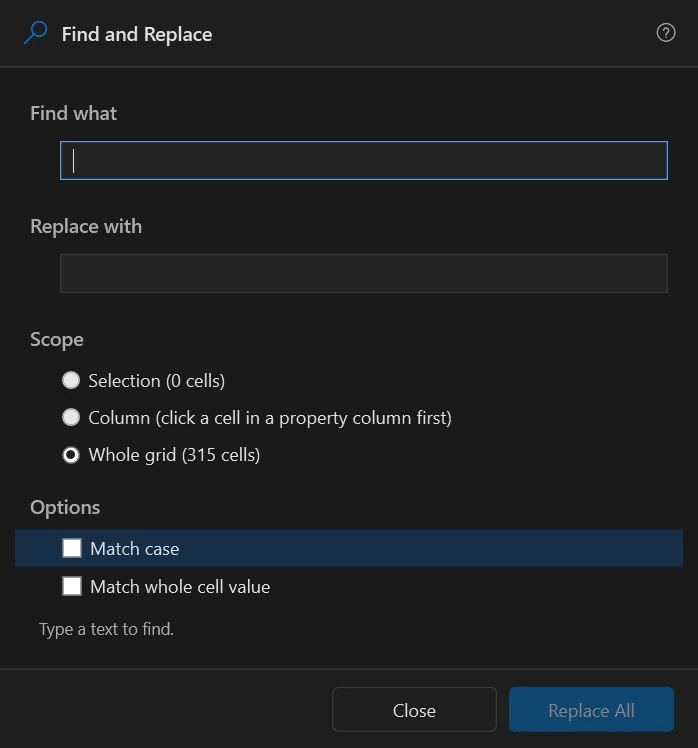
Options
| Option | What it does |
|---|---|
| Selection | Only the selected cells. |
| Column | Every cell of the current column. Click a cell in a property column first. |
| Whole grid | Every editable cell of the grid. |
| Match case | Upper and lower case must match. |
| Match whole cell value | Only cells whose whole value equals the text, not cells that only contain it. |
Good to know
- Only cells in green and blue columns of visible rows change.
- Cells with a formula are skipped. Cells of a List column are skipped when the new value is not in the list. The result line says how many cells were skipped.
- The changes are staged. One Ctrl+Z takes back the whole replace.
- The dialog box stays open for the next search. Enter runs Replace All, Esc closes it.
- The scope starts on Selection when several cells are selected, else on Column, else on Whole grid.