Running an Export
Click Start Export to write every checked file of the Export result. Vitreo uses SOLIDWORKS for the conversion and keeps going when SOLIDWORKS has a problem.
To run an export:
- Check the Export Result.
- Click Start Export in the command bar.
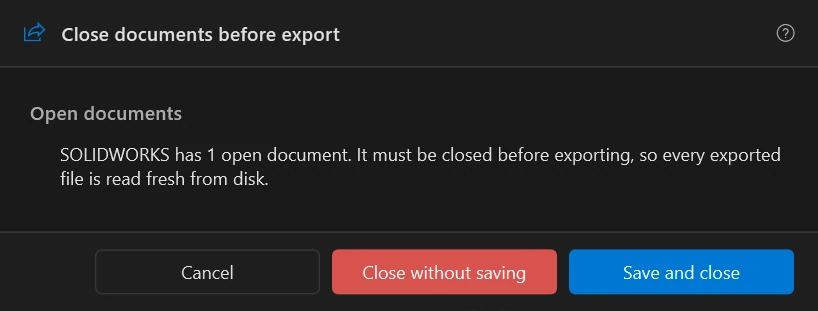
- If SOLIDWORKS has open documents, choose in the Close documents before export dialog box:
- Save and close: saves the documents with changes, then closes them.
- Close without saving: closes them and discards unsaved changes.
- Cancel: no export.
- Wait for the status bar message Export finished.
While it runs
- When no SOLIDWORKS is running, Vitreo starts the SOLIDWORKS version of the project.
- The SOLIDWORKS Pane shows the file in work.
- Click Stop next to the progress line to stop. See Progress and Stop Process.
- Only one export runs at a time.
When an export stops halfway
Vitreo remembers which files are done. Click Start Export again. Vitreo asks:
- Continue: exports only the remaining files into the same folder.
- New export: starts over in a new folder.
When SOLIDWORKS stops responding
When one file takes more than 10 minutes, Vitreo ends SOLIDWORKS, starts it again and goes on. This happens at most 3 times. A file that takes SOLIDWORKS down twice is skipped. Vitreo lists the skipped files at the end. Open them in SOLIDWORKS to check them.
Good to know
- An existing main folder is never overwritten. A new run gets (2), (3) behind the name.
- With Open folder after export on, the main folder opens when the export is done.
- Open export folder in the command bar opens the export folder of the active template.
- The end message tells how many files came from the export store and how many were renamed.
- A run with problems ends with Export finished with problems. Click Start Export again to retry the rest.