Parts of an Item Box
Every file on a page is shown as an item box: a card with the SOLIDWORKS preview, the file name and one property value.
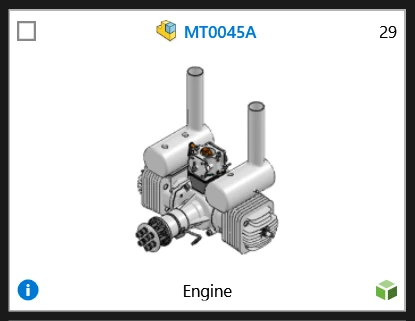
| Part | Where | What it does |
|---|---|---|
| Check box | Top left | Checked item boxes are the targets of a command. See Checking Item Boxes. |
| File type and file name | Top | The SOLIDWORKS icon shows part, assembly or drawing. Assembly names are blue. Click the name to open the folder in Windows Explorer, with the file selected. |
| Number | Top right | For an assembly: how many components it holds. For a part or drawing: how many other files use it. Hidden when it is 0. |
| Preview | Middle | Click it to step into an assembly or drawing. Point at it to see the hover buttons. |
| File information | Bottom left | The blue i button. Shows the file in the Item Info pane. |
| Item box text | Bottom | The value of one property, for example the description. See Item Box Text. |
| 3D preview | Bottom right | The green cube. Opens the model in eDrawings inside Vitreo. See 3D Preview. |
Small icons can appear at the top right of the preview, for example a warning or a lock. See Item Box Badges.
Tip Point at the file name to see the full name, the configuration and the folder.
Good to know
- The preview is cropped to the model, so the model fills the item box.
- To show the configuration after the name, turn on Settings > Options > Show configuration in item boxes. The name then reads like Bracket [Default].
- Make item boxes larger or smaller with the tile size slider. See Arranging Item Boxes.