Updates
When a new version of Vitreo or of one of your add-ins is ready, the update form opens by itself at the start. Vitreo and the add-ins update in one run.
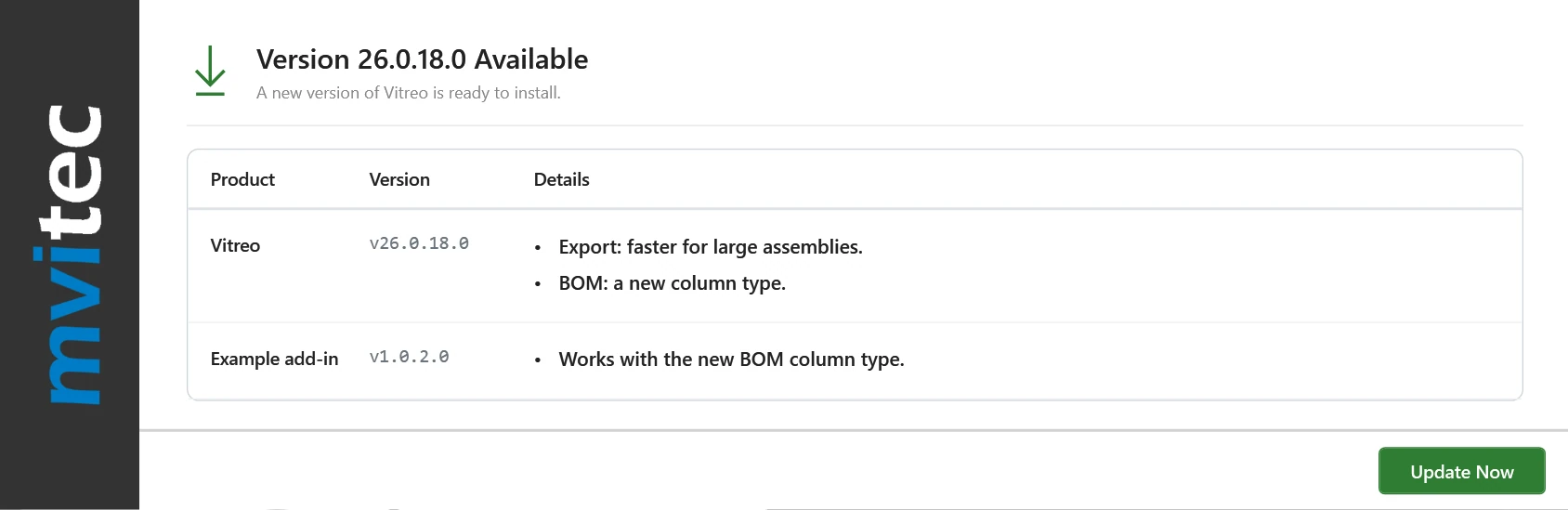
The update form
The form shows one row per product: Vitreo first, then each add-in that has a new version. Each row has the Version and the Details: what is new.
To update:
- Click Update Now. Vitreo downloads the Mvitec installer.
- Windows asks for administrator rights. Click Yes.
- The form says Update installer is open. Vitreo will restart when done. Vitreo closes.
- The installer updates Vitreo and the add-ins and starts Vitreo again.
Later or now
| Heading of the form | What it means |
|---|---|
| Version 26.0.18.0 Available (the new version number) | A normal update. Close the form to update later. It opens again at the next start. |
| Addin update available | Vitreo is up to date. One or more add-ins have a new version. |
| Update required | This version of Vitreo is no longer supported. Closing the form closes Vitreo. Install the update to go on working. |
To update later at any time, click the amber update badge in the command bar.
When something goes wrong
| You see | What to do |
|---|---|
| Update cancelled. | You clicked No when Windows asked for rights. Click Update Now again. |
| Update failed | The message gives the reason and a download link. Download the installer from that link, run it and choose Vitreo. Your projects and settings are kept. |
Good to know
- Save your work before you click Update Now. Vitreo closes during the update.
- The form opens by itself once per start. Within ten minutes after an update it does not open again by itself, but the badge stays.