The Sample Project
The sample project is a set of ready-made SOLIDWORKS files from Mvitec. Use it to try every step of Vitreo without touching your own files.
To download the sample project:
- Click Download sample project at the bottom of the Projects pane. Or click More options (the three dots) in the Projects pane and choose Download sample project.
- The Download sample project form shows the project, the number of files, the size, the SOLIDWORKS version and the folder. Click Download.
- Wait until the files are downloaded. Vitreo activates the project and loads it.
The sample project sits under the Sample projects row at the top of the Projects pane. Use it like any project: add pages, columns and exports.
Reset the sample project
Made a mess? Put everything back the way it was.
To reset the sample project:
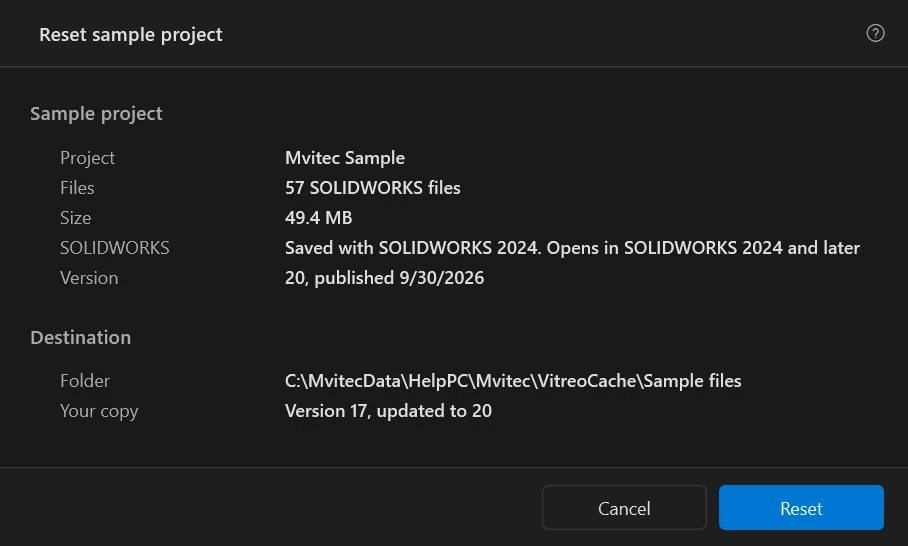
- Click Reset on the sample project row. Or right-click the sample project and choose Reset sample project.
- Check the form and click Reset.
Vitreo downloads the newest sample files and settings again. Your name for the project and its group stay.
Good to know
- The sample files go to a folder of Vitreo on this PC. Your own projects and SOLIDWORKS files are not touched.
- Changes you made inside the sample project are lost when you reset it.
- An amber sign in front of the sample project name means a newer version is available. Reset the project to get it.
- The form warns you when the sample files were saved with a newer SOLIDWORKS than the one on this PC. Vitreo still shows them, but your SOLIDWORKS cannot open them.
- The download needs an internet connection.
- An add-in can have its own sample project. It sits in the same Sample projects row.