Pack and Go
Copy the checked files of the File Explorer into one zip file or one folder, for example to send an assembly to a supplier.
To pack files:
- In the File Explorer, check the items you want to send.
- In the Flat View, click More options > Pack and Go.
- Check the Package name. Click the pencil to change it.
- Under Format, choose Zip file or Folder.
- Under Export location, choose Source file folder, Desktop or Custom folder.
- Click Pack and Go.
Windows Explorer opens with the result.
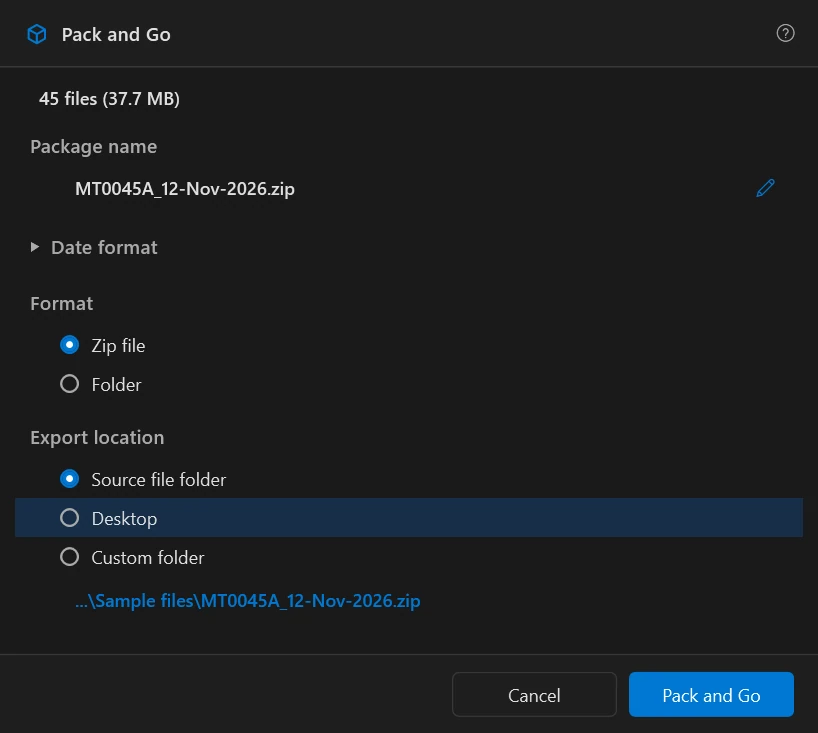
| Option | What it means |
|---|---|
| Zip file | All files side by side in one zip file. Extract it into one folder to open the files with all references intact. |
| Folder | All files side by side in one new folder with the package name. |
| Source file folder | The folder of the top-level item in the File Explorer. |
| Custom folder | A folder you choose. The folder buttons choose it or open it. |
Good to know
- The files are copied flat, without subfolders. Two files with the same name from different folders cannot both go in: the second one is skipped and reported.
- An existing package is never overwritten. The new one gets _2, _3 and so on.
- The package name can hold tokens. The default is {FileName}_{Date}.
- The settings are saved per project.
- Files that are open in SOLIDWORKS can be packed too.
- No items are checked in the list means nothing is checked yet.
- Pack and Go is not there when your edition does not include Export. See Editions.