No License or Trial Ended
When your account has no usable Vitreo license, Vitreo shows a message at the start instead of the window. The heading and the buttons tell you what to do.
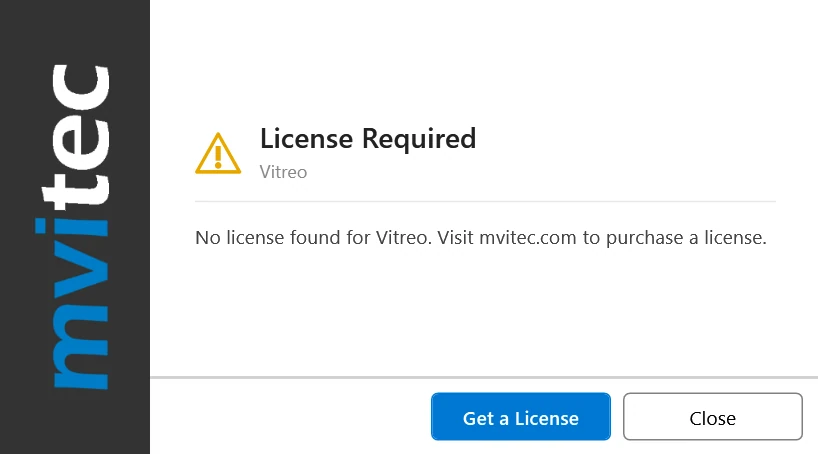
What you see and what to do
| Heading | What it means | What to do |
|---|---|---|
| License Required | The account has no Vitreo license, or the license or trial has expired. The text below the heading gives the reason. | Click Get a License to open mvitec.com. Or sign in with the account that holds the license. |
| Confirm your email | Your trial is paused until you confirm your email address. | Click the link in the email from Mvitec. Then click I have confirmed. Vitreo checks again and starts. No mail? Click Send the link again. |
| Trial already used | A trial already ran on this PC with another account. A PC gets one trial. | Click Buy a License. Or sign in with the account of the first trial. |
Close always closes Vitreo.
Your license is active on another PC
The text Your Vitreo license is active on followed by a PC name means all seats of your license are in use. Close Vitreo on that PC, or wait the minutes the message names. See Seats and Two PCs.
Good to know
- I have confirmed checks again as often as you want. You do not need to restart Vitreo.
- Without internet the message can also say Cannot connect to Mvitec server. Check the connection and start Vitreo again. See Working Offline.
- A license for another edition does not show this message. It locks some tabs instead. See Locked Tabs.