Compare Overview
Compare makes one flat list of every component of item A and item B, with the total quantity in each. Each line tells you if the component is only in A, only in B, has another quantity, or is the same.
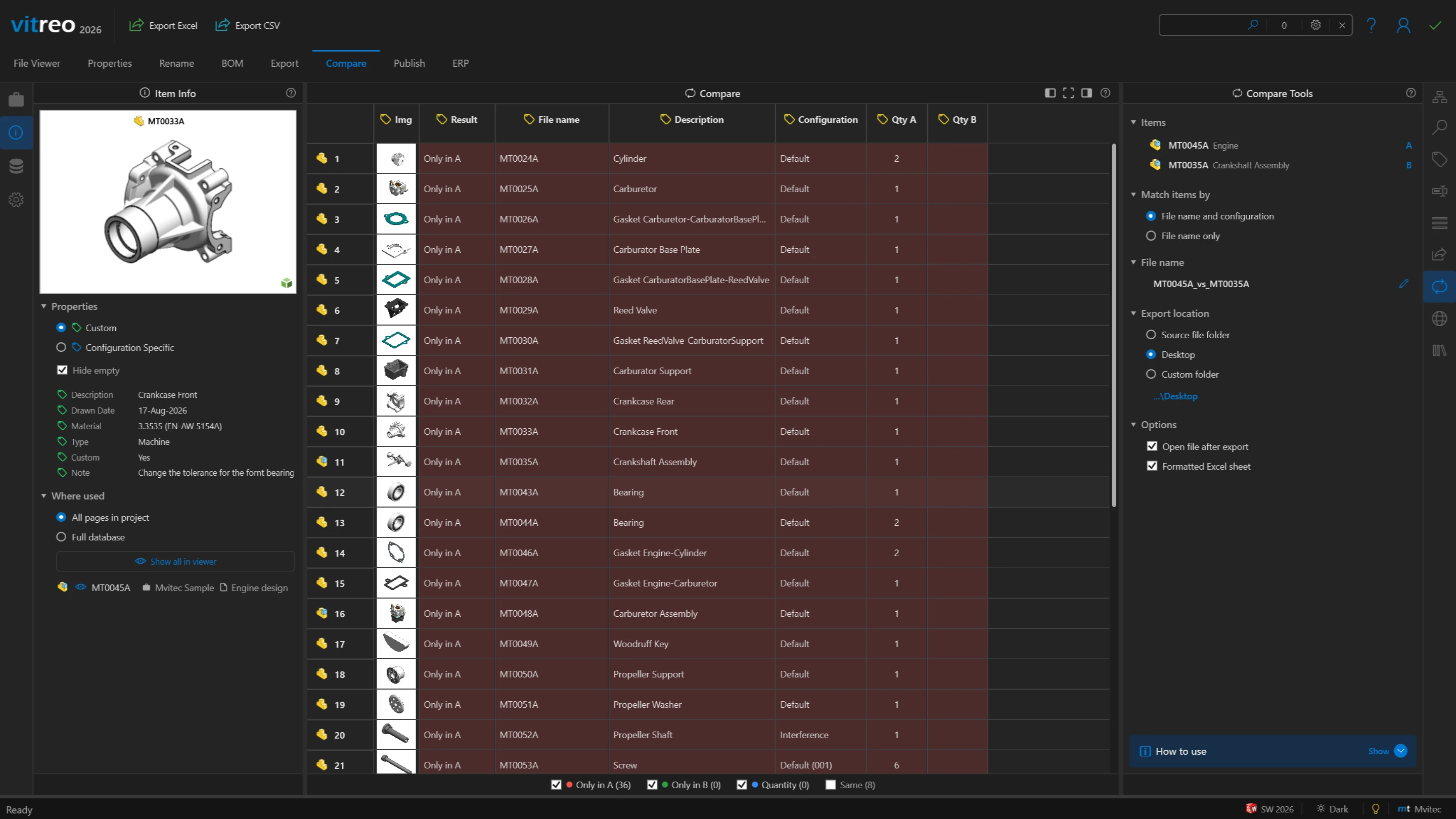
To compare two assemblies:
- Put both assemblies in the File Explorer. Or check two item boxes, right-click one and choose Compare these 2 items.
- Click the Compare tab.
- Read the list in the center. See Reading the Result.
- Click Export Excel or Export CSV to save the list.
What is compared
| Compared | Not compared |
|---|---|
| The file name of each component | Property values |
| The active configuration (you can switch this off) | File dates and file sizes |
| The total quantity over the whole structure | Where in the structure a component sits |
The total quantity is the BOM number: the quantity is multiplied through every level and added up over every place the component is used. A sub-assembly and the parts inside it are each a line of their own.
A: Assembly-100 rev A
 Assembly-100
 Bracketx2
- Sub-assembly-200x1
- Boltx4
B: Assembly-100 rev B
- Assembly-100
- Bracketx3
- Sub-assembly-200x1
- Boltx4
- Platex1
→matched by
file name
The compare result
| Result | File name | Qty A | Qty B |
|---|---|---|---|
| Quantity | Bracket | 2 | 3 |
| Only in B | Plate | 1 | |
| Same | Sub-assembly-200 | 1 | 1 |
| Same | Bolt | 4 | 4 |
Good to know
- The two compared items are not lines themselves. Only what is inside them.
- Drawings are left out.
- A component with a new file name is two lines: Only in A for the old name, Only in B for the new name. Vitreo does not guess renames.
- Two files with the same name in different folders are the same item. That is how two revisions in two folders compare.
- Suppressed components and components excluded from the BOM are not counted.
- Two parts compare to No components: a part has nothing inside it.