Search Properties
The search properties are the properties the search text looks in, next to the file name. Choose them per project.
To choose the search properties:
- Click the gear in the search box, or in the search text of the Advanced Search pane.
- The form Search properties lists every property found in the project: custom properties on the left, configuration specific properties on the right.
- Check the properties the search should look in.
- Click Save. The next count and search use them at once.
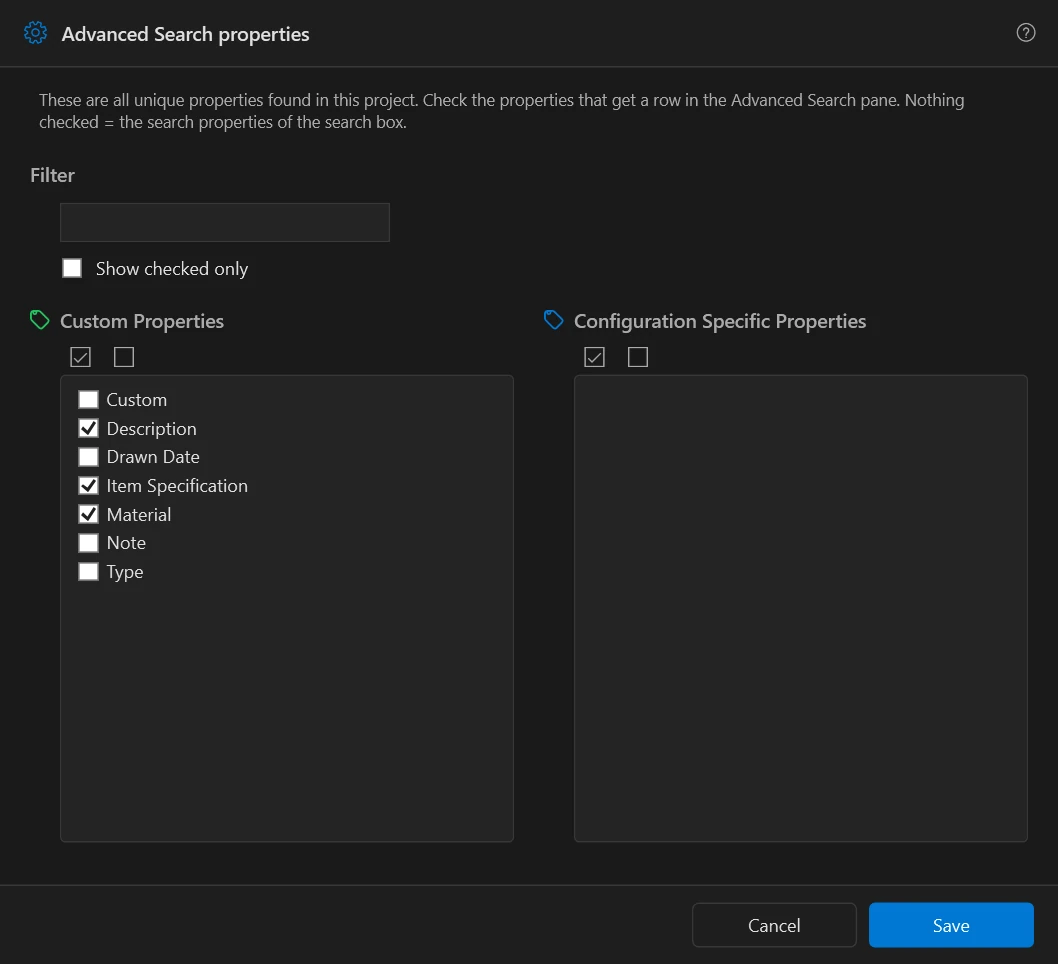
| In the form | What it does |
|---|---|
| Filter | Type to narrow both lists by property name. |
| Show checked only | Hides the unchecked rows in both lists. |
| Select all / Deselect all | Above each list. Act on the rows you can see. |
Good to know
- The file name is always searched.
- With nothing checked, the search looks in the property shown on the item boxes. See Item Box Text.
- The choice is saved per project.
- Property rows and exclude words of the Advanced Search pane do not use this list.
- Choose properties in the Advanced Search pane opens the same form, titled Advanced Search properties. It chooses which properties get a row.
- The gear is not there in the Standard edition. Search then looks in file names only.