Panes and Splitters
Make the panes wider or narrower, hide them, or give the center the whole window. Vitreo remembers the widths you choose.
Change the width of a pane
To resize a pane:
- Drag the thin line (the splitter) between the pane and the center.
To go back to the standard width:
- Double-click the splitter. The pane becomes one fifth of the window wide. On the right side, the two halves of the File Explorer become equal again.
Hide and show the side panels
Every center area has three buttons on the right of its toolbar, and a question mark that opens the help page of the tab.
| Button | What it does |
|---|---|
| Hide left panel / Show left panel | Hides the left panel down to its icon strip, or shows it again. |
| Expand center. Restore panels | Hides both side panels at once. Click again to show both. |
| Hide right panel / Show right panel | Hides the right panel down to its icon strip, or shows it again. |
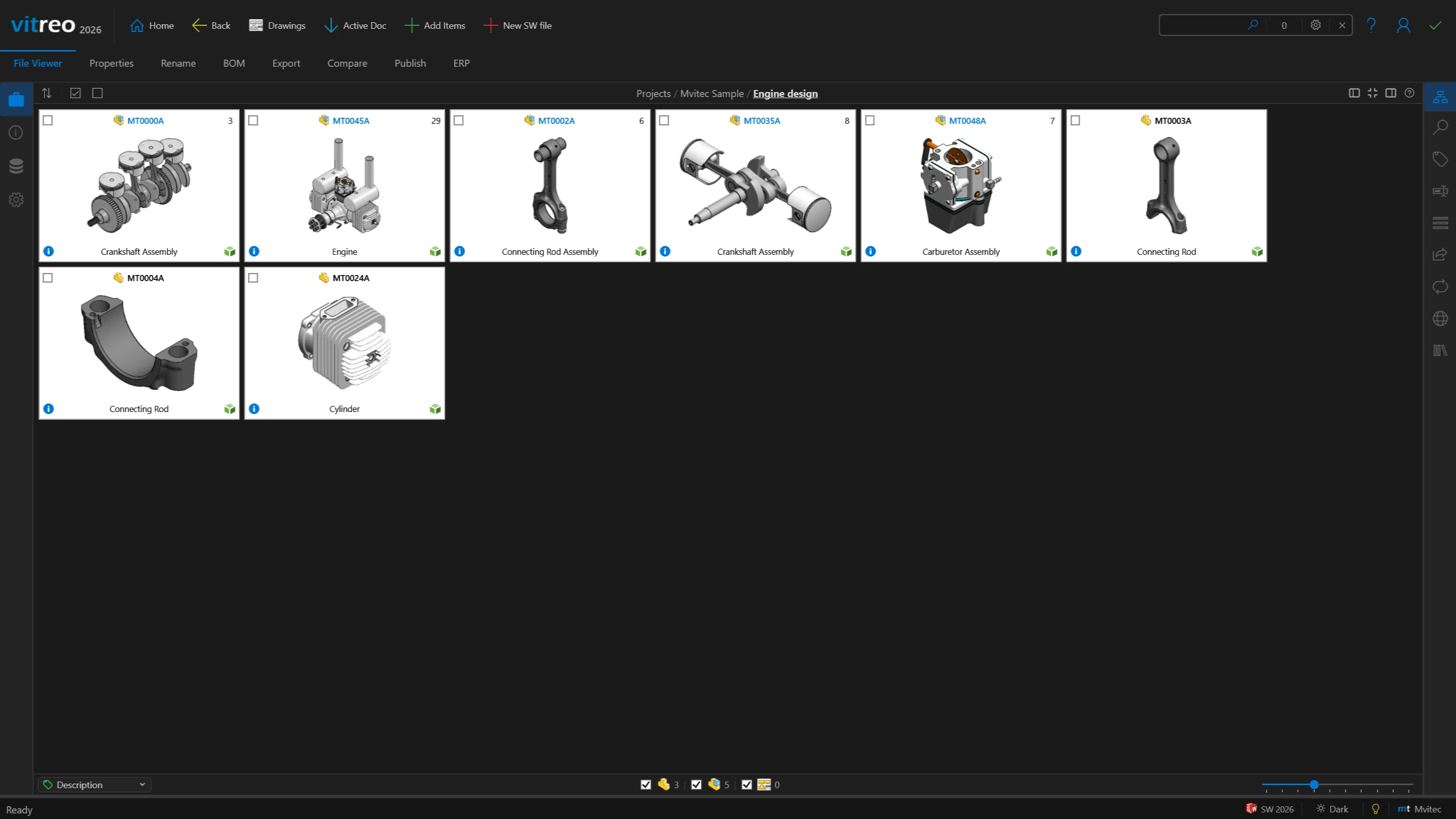
A hidden panel keeps its icon strip. Click an icon in the strip to open that panel again.
Good to know
- Each pane remembers its own width. The Projects pane can be narrow and the Settings pane wide. When you switch panes, the panel takes the width of that pane.
- The widths are kept on this PC, also after a restart.
- A panel has a minimum width. The center always keeps room for its content.
- The SOLIDWORKS pane opens a bit wider than the others until you drag it yourself.