Materials
The Materials tab lists your SOLIDWORKS materials. Assign a material to many parts at once by a double-click or by dragging it onto the grid.
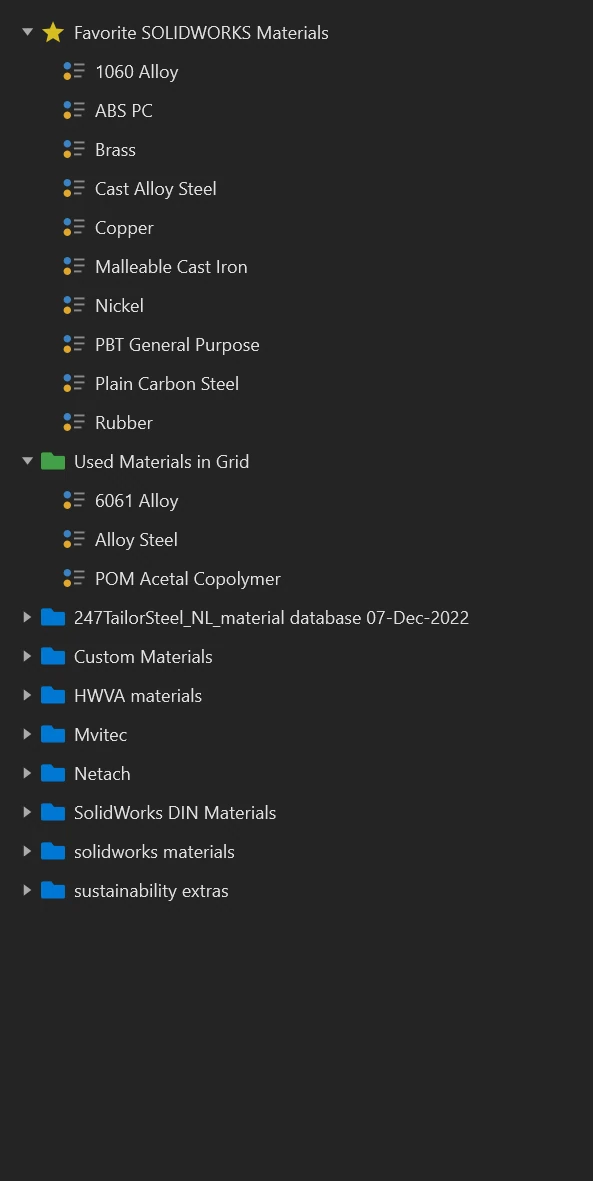
The tree shows:
- Favorite SOLIDWORKS Materials: your favorite materials of SOLIDWORKS.
- Used Materials in Grid: the materials of the files in the grid.
- One folder per material database, with its classes and materials.
To assign a material:
- Select cells of part rows in the property column for the material.
- In the Materials tab, double-click the material. Or drag it onto a cell. The cells show, for example, AISI 304 [SW save required].
- Click Save. The Save Properties dialog box opens the parts in SOLIDWORKS to set the material.
To find a material: type in Search materials.... A flat list replaces the tree while you type. Click the cross to show the tree again.
Gold materials
A material name in gold is used in your files, but Vitreo did not find it in any of your material databases. It can still be a valid material, for example from a database that is not on this PC. You can assign it like any other material. SOLIDWORKS links materials by name, so it may refuse a material it cannot find when you save.
Where the list comes from
The materials come from the SOLIDWORKS material files (.sldmat). When SOLIDWORKS runs, Vitreo asks it for the material folders and remembers them on this PC. Without SOLIDWORKS, Vitreo uses the folders it remembered. On a PC where SOLIDWORKS never ran with Vitreo, the tree stays empty: start SOLIDWORKS once.
Good to know
- Materials can only be set on parts. Assemblies are skipped.
- Locked cells and List columns are skipped.
- A double-click sets the material in every selected row of every selected column.
- One assign is one step for Ctrl+Z.
- The material is a linked property: the cell holds a formula and shows the material name.
- Open How to use at the bottom of the tab for a short summary.