The File Tree
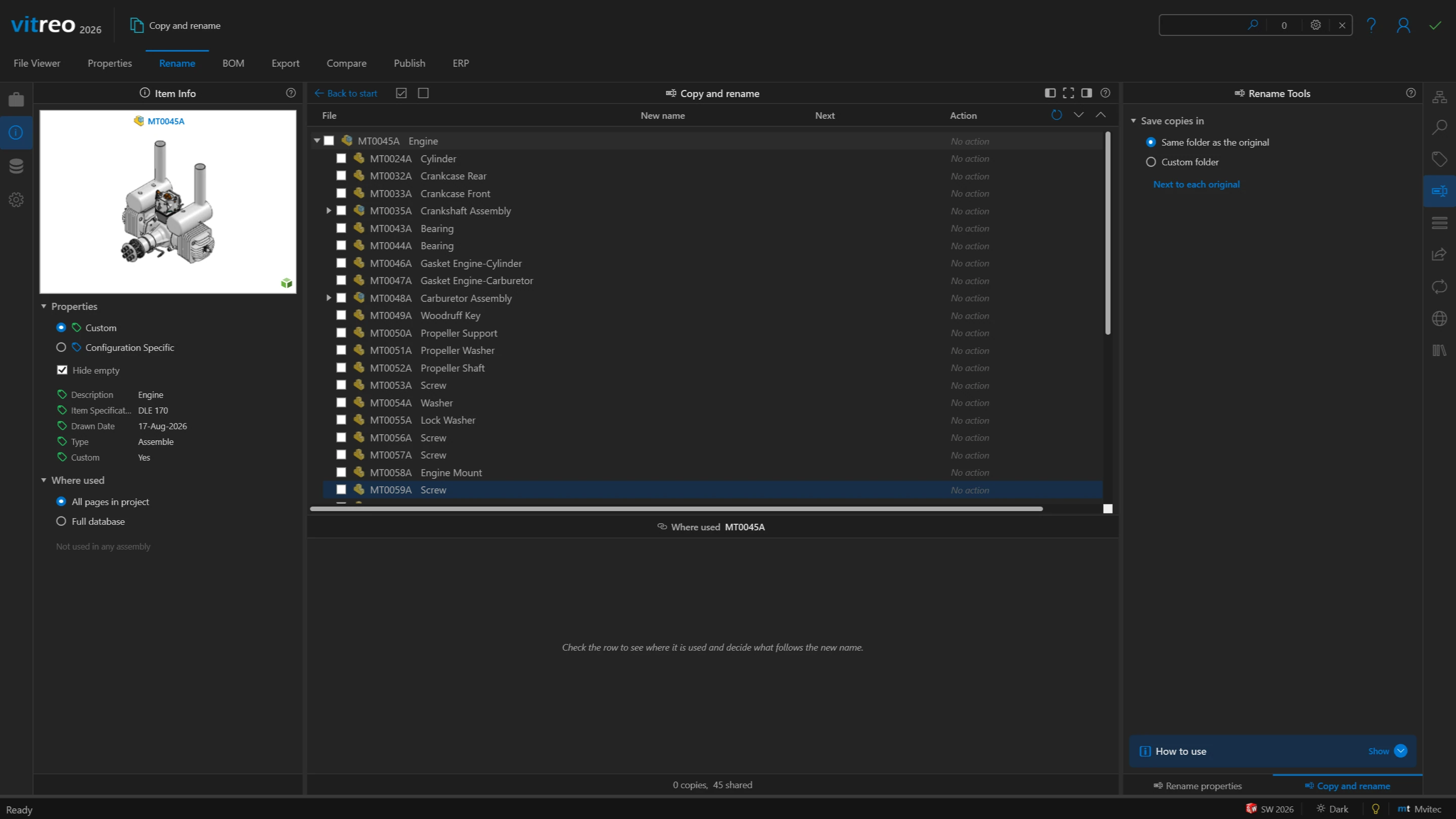
The file tree shows each item with its whole structure. One check box per row decides if that file gets a copy. Under the tree you see where the selected file is used.
Columns
| Column | Shows |
|---|---|
| File | Check box, icon, name and description. Drawings are listed first under their model. |
| New name | The name of the copy, with a pencil to change it. See New Names. |
| Next | Number or Revision: how the new name is made. Only shown when it applies. |
| (status) | A green, amber or red sign. Point at the row to read it. |
| Action | Copy and rename or No action. |
| Add to home page | After the run, the copy becomes a home item of the active page. Usually only for the main assembly. See Home Items. |
| New location | The full path of the copy. |
Checked and unchecked rows
- Checked: the file gets a copy with a new name.
- Unchecked: the file is not copied. It stays shared: the copied assembly keeps using the original.
- A drawing follows its model. Check the model and its drawing is checked too, and the other way round.
- A file that appears more than once in the tree has one decision. Check it in one place and it is checked everywhere.
Use Check all and Uncheck all in the title bar to set every row at once.
Status
| Sign | Meaning |
|---|---|
| Green check | Ready. The tooltip says the new name and how many files use the copy. |
| Amber | Check it. The file has in-context references. The copy still points at the original context. Check it in SOLIDWORKS. |
| Red cross | Blocked. The run does not start. The tooltip says why. |
Reasons for a red cross:
| Tooltip says | What to do |
|---|---|
| Give it a new name. | Type a name. Or set up a numbering system. |
| Give the drawing a name. Its name differs from the model. | Type a name for the drawing. |
| The name has characters a file name cannot have. | Change the name. |
| The new name is the same as the old one. | Change the name, or save the copy in another folder. |
| ... already exists in that folder. | Choose another name. |
| Another row gets the same name. | Give one of the rows another name. |
| The file is not on disk. | Uncheck the row, or click Refresh. |
| Used by ..., open in SOLIDWORKS or read-only. | Close or unlock those files. Or uncheck them under Where used. |
Good to know
- The line under the tree counts the rows, for example: 3 copies, 1 drawing, 12 shared.
- Refresh reads the files again from disk. Use it after you renamed or removed files by hand. Names you typed stay.
- Expand all opens every level. Collapse all keeps only the top items open.
- Right-click a row to open the file in SOLIDWORKS or Windows Explorer, or to copy its path or name.
- A file that is open in SOLIDWORKS is no problem. SOLIDWORKS writes the copy from memory, with unsaved changes.