Creating a Project
Create a project for each company, product or machine you work on. The project starts with one page.
To create a project:
- In the Projects pane, click New project (the plus) in the toolbar.
- Type the Project name and the name of the First page.
- Fill in the other sections, or leave them for later.
- Click Create.
The new project becomes active and its first page opens. It is still empty: add a folder to it. See Adding Folders and Files.
Tip When you have no project yet, drop a folder from Windows Explorer on the File Viewer. The New project form opens with the folder name filled in.
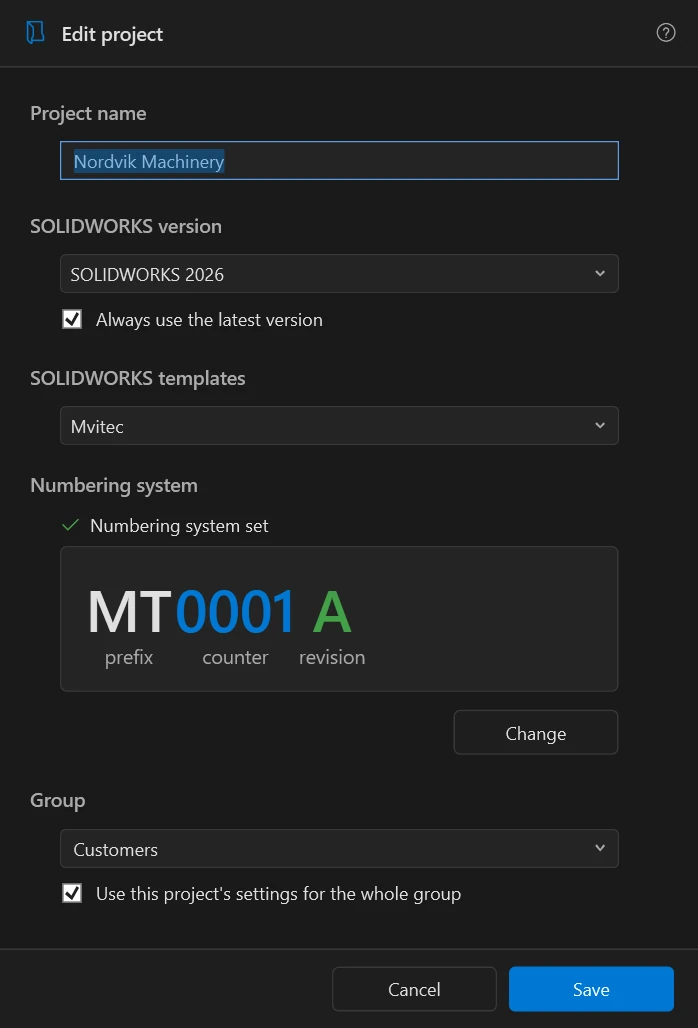
The sections of the form
| Section | What it sets |
|---|---|
| Project name | The name in the Projects pane. A name that is already used is refused: the form says so and stays open. |
| First page | The name of the first page, for example Page 1 or Order 1001. |
| Copy settings from | Copies columns, BOM templates, export templates, search setup and the description property from another project. Pages, the SOLIDWORKS version, the templates and the numbering are not copied. |
| SOLIDWORKS version | The SOLIDWORKS version Vitreo opens the files of this project in. Always use the latest version is on by default. |
| SOLIDWORKS templates | The template folder for new parts, assemblies and drawings. The list holds the same folders as the tabs of the SOLIDWORKS New dialog. (Not set) uses the SOLIDWORKS default templates. |
| Numbering system | How the files of the project are named. Click Set up. See Numbering System. |
| Group | Puts the project under a group row. Pick a group or type a new name. See Project Groups. |
Change a project later
Right-click the project and choose Edit project. It is the same form with a Save button, without First page and Copy settings from. Pages and files stay the same.
Good to know
- Pick a fixed SOLIDWORKS version when you have two versions on one PC. A file saved in the newer version by accident cannot go back to the older one.
- A version that is not installed on this PC shows (Not installed). Colleagues with that version can still use the setting.
- When the project joins a group that already uses the settings of another project, the version, templates, numbering and copy sections are hidden. The group settings apply.
- Enter creates the project. Esc cancels.