SOLIDWORKS Instances
The status bar shows one button for each SOLIDWORKS that runs on this PC. Vitreo works with one of them: the active instance. Commands such as Open in SOLIDWORKS and exports go to that one.
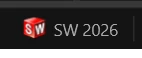
| You see | It means |
|---|---|
| SW 2025 in full color | The active instance. Vitreo talks to this SOLIDWORKS. |
| SW 2024 dim | Another running SOLIDWORKS. Vitreo does not use it now. |
| No running SOLIDWORKS found | No SOLIDWORKS runs. Vitreo still shows and reads your files. |
To switch to another SOLIDWORKS:
- Click its button in the status bar.
That SOLIDWORKS becomes the active instance and comes to the front. A short Active instance sign with a green check shows over its window.
Good to know
- When the active SOLIDWORKS closes, Vitreo switches to another running one by itself and shows the same sign.
- Point at a button: Active SOLIDWORKS instance or Switch to this SOLIDWORKS instance.
- More about two versions on one PC: see Several SOLIDWORKS Instances.