Custom and Configuration Specific Properties
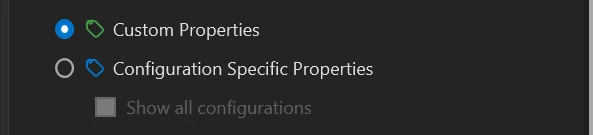
SOLIDWORKS has two kinds of properties. The grid shows one kind at a time. You choose the kind with Property type.
| Kind | Where the value lives | Column tag |
|---|---|---|
| Custom Properties | In the file. The same for every configuration. | Green |
| Configuration Specific Properties | In each configuration. Every configuration can have its own value. | Blue |
To switch the property type:
- Open Property Manager Tools and click the Columns tab.
- Under Property type, click Custom Properties or Configuration Specific Properties.
The grid shows the columns of that kind.
Note Each kind has its own column list. When you switch, you see other columns. The columns of the other kind stay saved.
Show all configurations
By default the grid shows one row per part or assembly, with the values of the active configuration. Check Show all configurations to get one row for every configuration.
- It works only with Configuration Specific Properties. With Custom Properties the row is dimmed.
- Qty shows only on the row of the active configuration. The other rows show an empty Qty, so totals still add up.
- The rows of one file stay together when you sort.
- The first time you switch it on, Vitreo reads older files again once. This can take a moment.
Good to know
- The property type and Show all configurations are saved per project.
- The Config column shows which configuration a row shows.
- The counts and lock chips in the bottom bar count files, not rows.