Quick Export
Export one file, or the checked files, to STEP, PDF, DXF and more, straight from the item box menu. No export template is needed.
To export from the item box menu:
- Right-click the item box. With checked item boxes, all checked items are exported.
- Click Export.... A second menu shows the formats.
- Click the formats you want. A check mark shows they are on. The menu stays open.
- Click Export.
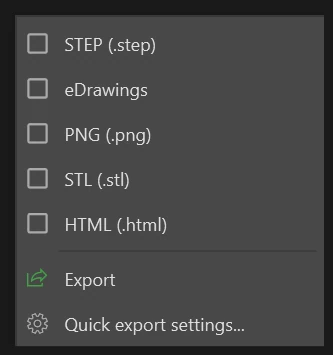
| Format | For |
|---|---|
| STEP (.step), STL (.stl) | Parts and assemblies |
| PDF (.pdf), DXF (.dxf), DWG (.dwg) | Drawings |
| eDrawings, PNG (.png), HTML (.html) | Parts, assemblies and drawings |
The menu only shows the formats that fit at least one of the items.
Good to know
- The checked formats are remembered per project.
- A format that does not fit an item, like PDF for a part, is skipped for that item.
- The file name and the folder come from the Export tools pane. Click Quick export settings... to go there. See Quick Export.
- The export needs SOLIDWORKS. Vitreo starts it when it is not running. Files that did not change since an earlier export are copied from the export store.
- Export... is not in the menu when your edition does not include Export. See Editions.