Dialog Boxes
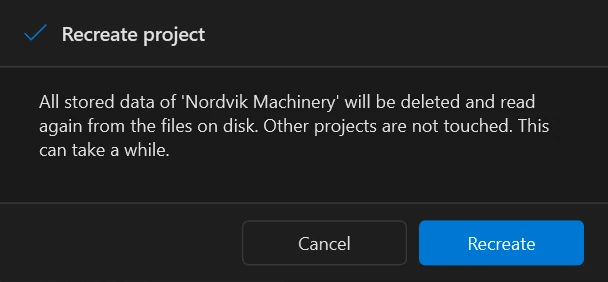
Vitreo asks before it does something important, and tells you the result in a dialog box. All Vitreo dialog boxes work the same way.
Keys
| Key | What it does |
|---|---|
| Enter | Clicks the action button, for example Create, Import or Reset. |
| Esc | Cancels and closes the dialog box. Nothing is changed. |
Parts of a dialog box
| Part | What it is |
|---|---|
| Title bar | What the dialog box is about, with a blue icon. The question mark on the right opens the help page of the dialog box. |
| Text | What will happen. Read it: it names the files or the project. |
| Note | A blue card for the one fact you must not miss, for example that your SOLIDWORKS files are not touched. |
| Cancel | Closes the dialog box without changes. |
| Action button | The button on the right. It says what it does, for example Download or Recreate. |
A red action button means the action cannot be undone. Read the text once more before you click it.
Good to know
- In a form with sections, point at a section header for more explanation.
- Some forms, such as Some files need attention, stay open while you work in Vitreo or SOLIDWORKS.