BOM Columns
The columns decide what the BOM shows. They are part of the active BOM template and never change your files.
Property type
The property columns read one kind of property. Choose it under Property type:
- Custom Properties: the custom properties of the file.
- Configuration Specific Properties: the properties of the active configuration.
Each template keeps a separate column list for both kinds. When you switch, you see the other list. Your columns are not gone.
The column list
Open Columns in the BOM Tools pane. Or click Columns in the toolbar above the grid.
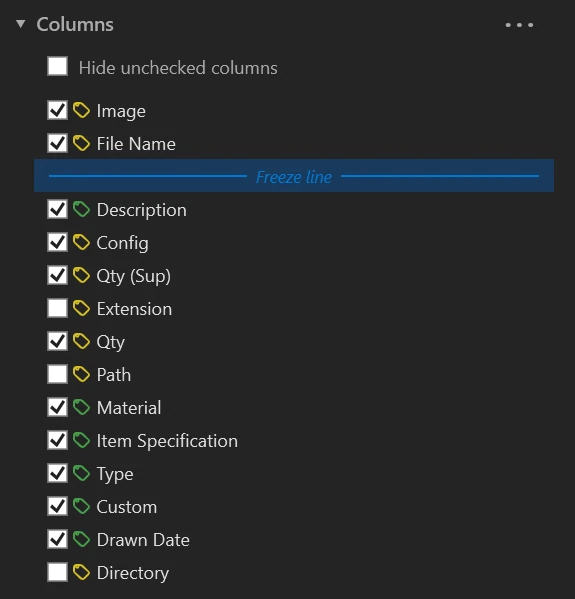
- Check or uncheck a column to show or hide it.
- Drag a column up or down to change the order. A blue line shows where it lands.
- Drag the Freeze line row. The columns above it stay in place when you scroll sideways.
- Image and File Name are always shown.
- The tag shows the column kind: yellow = file property, green = custom property, blue = configuration specific property.
- Hide unchecked columns shortens the list to the checked columns.
Column commands
Click the three dots next to Columns, or right-click the list.
| Command | What it does |
|---|---|
| Add columns > New column | Adds one column for a property name you type. |
| Add columns > From project files | Lists the property names in the files of this project. Check the ones you want. |
| Add columns > Import from Properties tab | Replaces the property columns with the columns of the Properties tab. |
| Add columns > Import from file | Reads the properties of one part or assembly you pick. |
| Add columns > Import from project | Replaces your columns with the BOM columns of another project. |
| Rename column | Changes the property name the column reads. Your files keep their property names. |
| Delete columns | Removes the selected, the unchecked or all property columns. |
| Sort A-Z | Puts the property columns in alphabetical order. |
Tip Not sure how a property is spelled? Use From project files.