Export Overview
The Export tab turns the checked items of the File Explorer into exported files, in a folder structure you design. You see every file and its final name before anything is written.
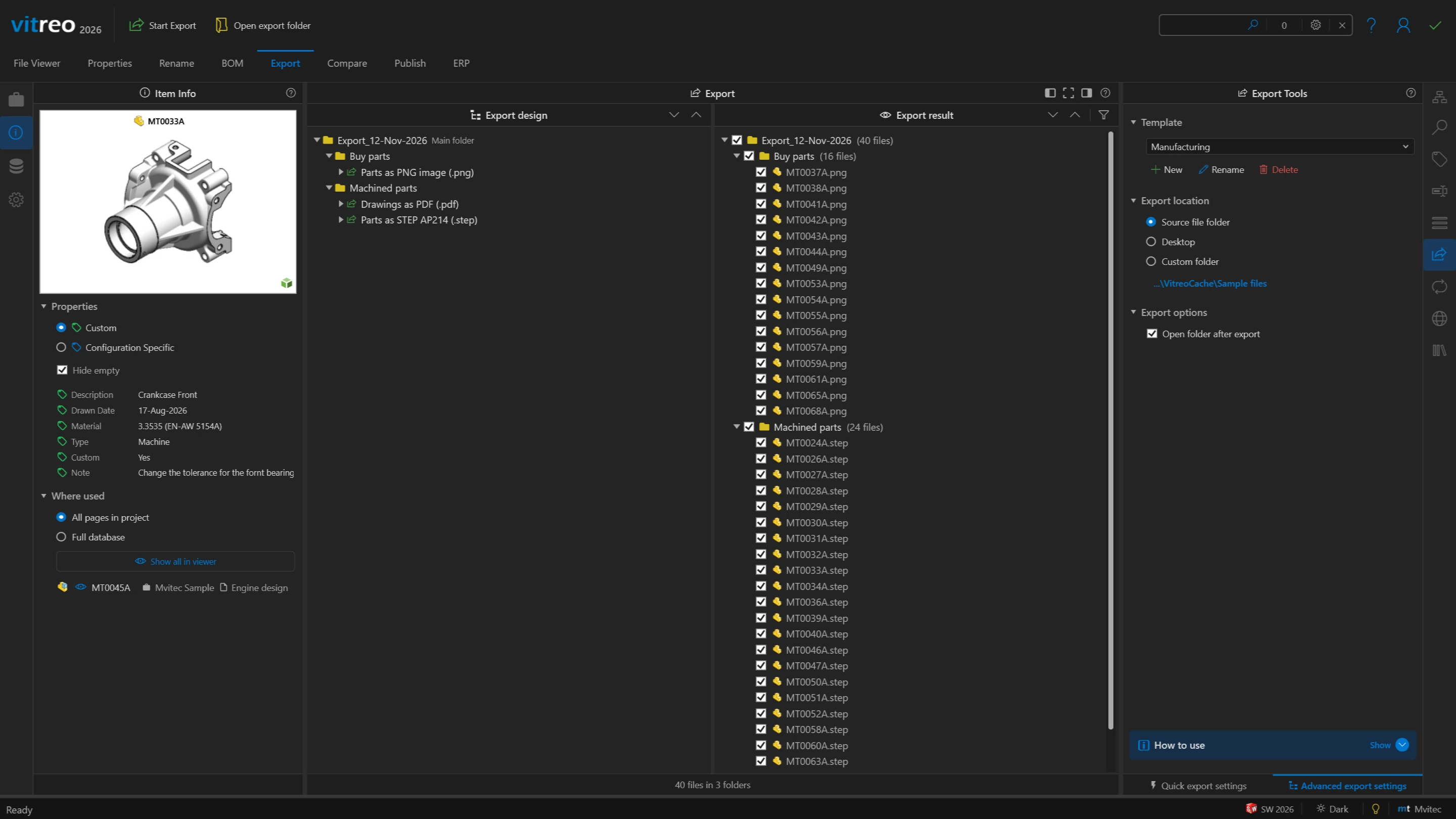
The parts of the Export tab
| Part | What it does |
|---|---|
| Export design | The folders of your export and the exports in each folder: which files, which format, which name. |
| Export result | Exactly what Start Export writes for the loaded items. Every folder and every file with its final name. |
| Export Tools pane | Advanced export settings: the template, the export location and the options. Quick export settings: the settings of the quick export. |
Export design
- Parts
- Parts as STEP AP214 (.step)
+
Checked in the File Explorer
 Assembly-100
 Bracket
- Plate 5 mm
=
Export result
- Parts
- Bracket.step
- Plate 5 mm.step
Assembly-100 is not exported: the rule takes parts only.
How it works
- Load items in the File Explorer and check the ones you need.
- Build the design once. See Your First Export Template.
- Check the Export Result.
- Click Start Export. See Running an Export.
The next time, load another assembly and click Start Export again. The design stays.
Good to know
- Exports need SOLIDWORKS. When none is running, Vitreo starts the SOLIDWORKS version of the project.
- The design never touches files on disk. Only Start Export writes files.
- The export uses the same checked items as the BOM.
- Files that did not change since the last export are copied, not made again. See The Export Store.
- The Export tab needs a Professional or Premium license. See Editions.