Signing In
Vitreo needs your Mvitec account. You sign in once on a PC. After that Vitreo signs you in by itself at every start.
To sign in:
- Start Vitreo. When Vitreo needs your password, the Mvitec Login form opens.
- Type your Email address and Password. Click the eye button to show the password while you type.
- Click Login.
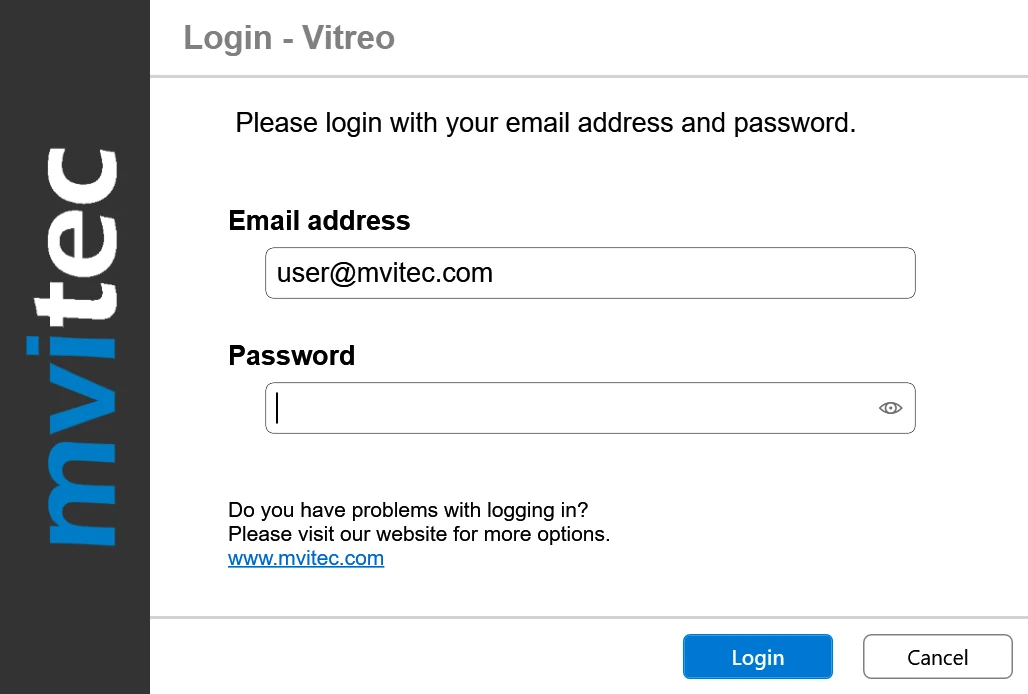
No account yet, or you forgot your password? Click the link at the bottom of the form: Do you have problems with logging in? Please visit our website for more options.
Who is signed in
Point at the Account button in the command bar (the person icon). The tooltip shows the email address of the account. See Account.
Signing out
To sign out:
- Click the Account button in the command bar.
- On the Account tab, click Logout.
- Close Vitreo and start it again. The sign-in form opens.
Good to know
- Cancel on the sign-in form closes Vitreo.
- Vitreo and the Mvitec SOLIDWORKS add-ins on this PC share one sign-in. Signing out signs out all of them.
- When your account has no usable license, a message tells you why. See No License or Trial Ended.
- Without internet Vitreo can still start for a while. See Working Offline.