Flat View Filters
Filter the Flat View to see only the items you need: by name, by property value, or without suppressed, virtual or missing items.
To filter the Flat View:
- In the Flat View, click More options > Filters.
- Fill in one or more filters.
- Click Filter.
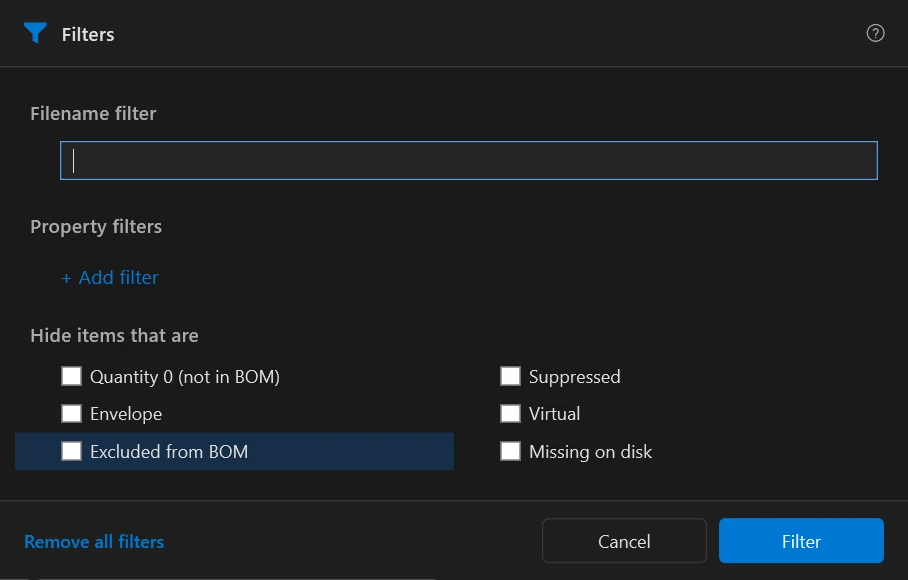
| In the form | What it does |
|---|---|
| Filename filter | Shows items whose name contains this text. The extension does not count. Case does not matter. |
| Property filters | Click + Add filter, then pick a property and a value. The property must have exactly this value, or one of several values with a | between them. Case does not matter. The red cross removes a filter. |
| Hide items that are | Quantity 0 (not in BOM), Envelope, Excluded from BOM, Suppressed, Virtual, Missing on disk. |
| Remove all filters | Empties the form. |
An item must match every filter.
While a filter is on
| Toolbar | What it does |
|---|---|
| Filtered chip | Click it to edit the filters. The cross clears them. Point at it to see how many items match. |
| Hide the items that do not match | Items that do not match are hidden. |
| Show the items that do not match grayed out | Items that do not match stay, in gray. |
| Check all items that match the filter | Checks every matching item. |
| Uncheck all items that do not match the filter | Unchecks the others. They stay out of the BOM and the export. |
Important A filter only changes what you see. It never checks or unchecks items. Use the two check buttons to make the BOM and the export follow the filter.
Good to know
- The property list shows the property columns of the project.
- Filters are not saved. They are gone when you close Vitreo.
- Enter = Filter, Esc = Cancel.
- Filters is not there in the Standard edition. See Editions.