Welcome Guide
The welcome guide shows the route through Vitreo in five steps. It opens by itself the first time you use Vitreo. Open it again at any time with the gold bulb in the status bar.
To open the welcome guide:
- Click the gold bulb (Getting started) on the right of the status bar.
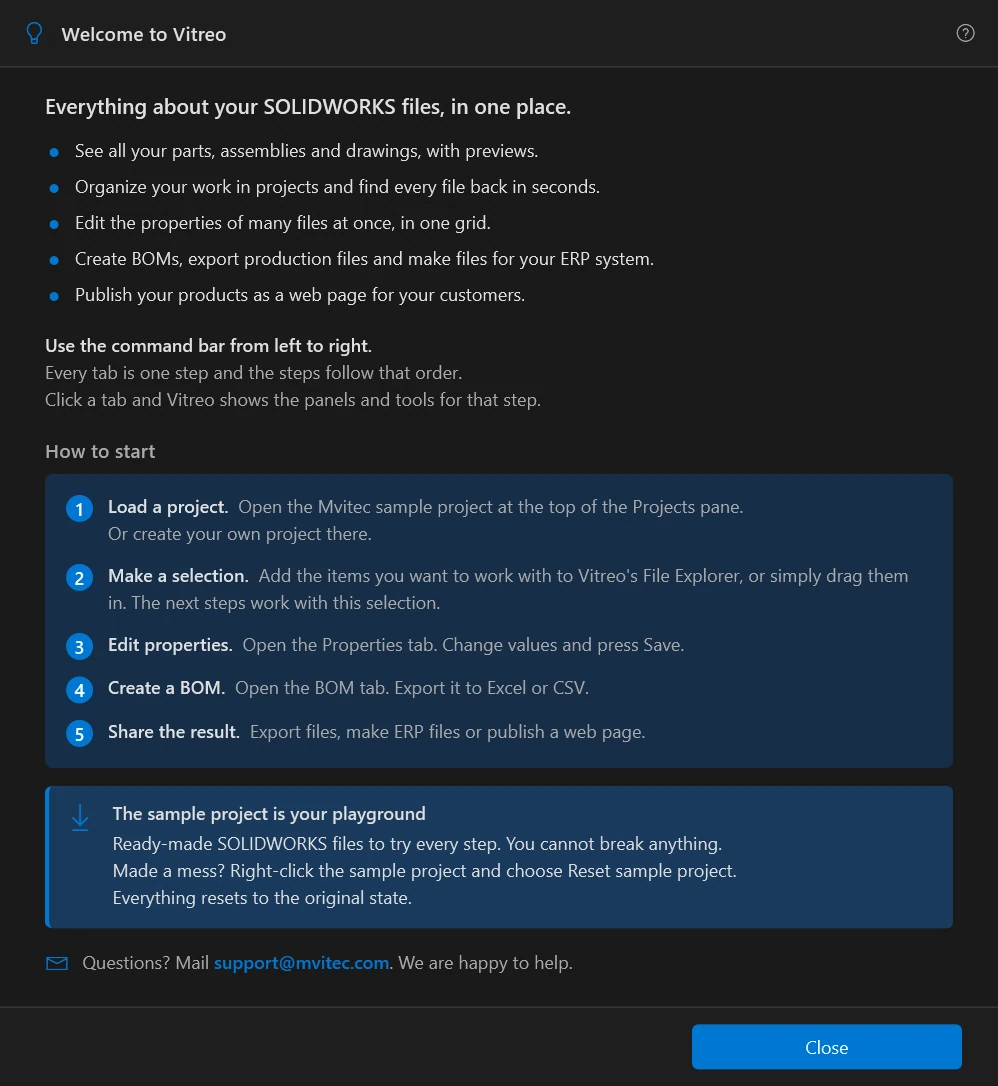
What it shows
The guide says: use the command bar from left to right. Every tab is one step. The five steps under How to start are:
- Load a project. Download the sample project, or create your own project in the Projects pane.
- Make a selection. Add the items you want to work with to the File Explorer, or drag them in.
- Edit properties. Open the Properties tab, change values and press Save.
- Create a BOM. Open the BOM tab and export it to Excel or CSV.
- Share the result. Export files, make ERP files or publish a web page.
For the same route with your own files, see Your First Project in Five Steps.
Buttons
| Button | What it does |
|---|---|
| Download sample project | Closes the guide and downloads the sample project. Shown only when the sample project is not in the Projects pane yet. See The Sample Project. |
| Close | Closes the guide. |
Good to know
- Enter starts the download (or closes the guide when there is no download button). Esc closes the guide.
- Click support@mvitec.com in the guide to write to Mvitec from your mail program.
- After a factory reset the guide opens by itself again at the next start.