Projects, Pages and Home Items
Vitreo shows your SOLIDWORKS files through projects, pages and home items. Your files stay where they are. A project is only a view on them: Vitreo never moves, copies or changes a file to show it.
Project A
- Machine Apage
- D:\Projects\Machine Ahome item: folder
 Assembly-100home item
- Machine Bpage
read once
never written back
File Viewer: item boxes
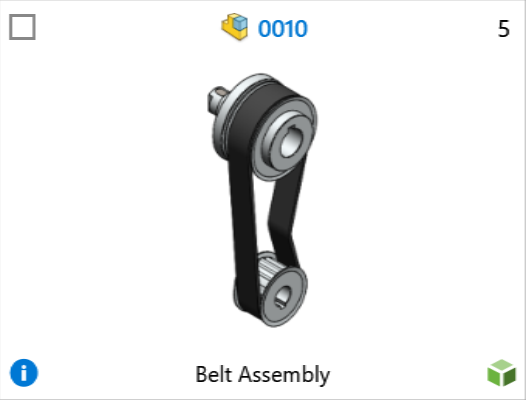
Click an assembly to step in: Bracket, Plate 5 mm ...
Project
A project is a row with a folder icon in the Projects pane. It holds pages and the settings they share: property columns, BOM templates, export templates, search setup, numbering system, SOLIDWORKS version and templates. Use one project per company, or one per product or machine.
Page
A page is a set of home items, for example one machine or one customer order. Only one page is active at a time. The File Viewer shows the home items of the active page.
Home item
A home item is a file or a folder on a page. You see them under Home items below each page.
- A part or an assembly shows as an item box on the first level of the page. Home always brings you back to it.
- A folder shows no item box. It tells Vitreo which files to read.
Item box
An item box is the card that shows one file: name, picture and text. Click an assembly item box to step into it and see its parts and subassemblies. See Parts of an Item Box.
How folders become item boxes
- You add a folder to a page, for example with Add Items > Add folder.
- Vitreo reads every SOLIDWORKS file in that folder once and keeps the data in its own database on this PC.
- Vitreo proposes the top-level assemblies of the folder: the assemblies no other assembly uses.
- The assemblies you check become home items. They show as item boxes.
Everything below them is one click away. Parts and subassemblies do not need to be home items. See Adding Folders and Files.
Good to know
- Reading never writes to your files. See How Vitreo Reads Your Files.
- The first read of a folder takes a while. After that, Vitreo reads only new and changed files.
- When you activate a project, Vitreo reads the folders of all its pages. Search and Where used then cover the whole project.
- One file can be a home item on several pages and in several projects.
- Projects live on this PC. To use a project on another PC, see Export and Import Projects. To work on one project with colleagues, see Shared Projects.
- Deleting a project, a page or a home item never deletes a SOLIDWORKS file.