Right Panel
The right panel holds the File Explorer, the search pane and the tools of each tab. Pick a pane with the icon strip on the far right of the window.
| Pane | What it is for |
|---|---|
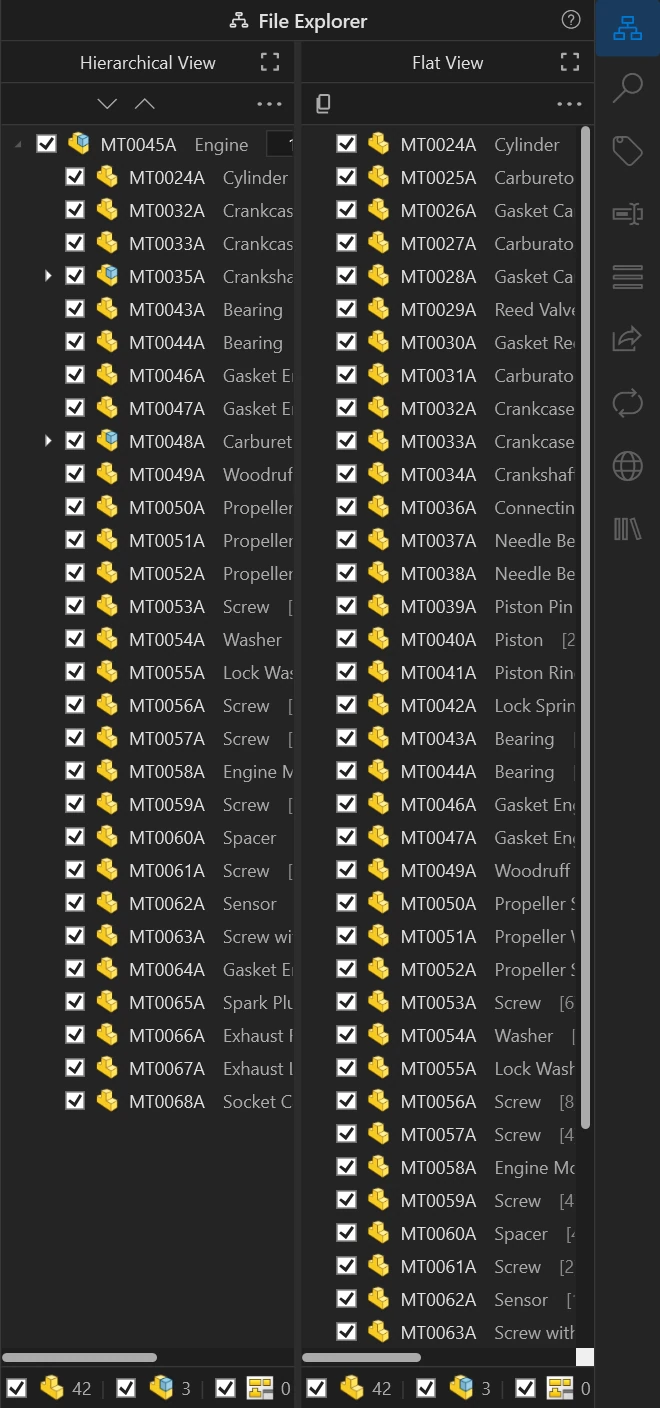
| File Explorer | Your working set: the items the Properties, BOM, Export, Compare and ERP tabs work on. See File Explorer. |
| Advanced Search | Search by property values, exclude words, choose where to search. See Advanced Search Pane. |
| Property Manager Tools | Materials, linked properties and columns for the Properties tab. See Property Manager Tools. |
| Rename Tools | The rules and settings of the Rename tab. |
| BOM Tools | BOM templates, columns, file name and export location. See BOM Templates. |
| Export Tools | Export templates and their settings. See Export Templates. |
| Compare Tools | How items are matched and where the result goes. See Match Items By. |
| Publish Tools | Publish folders, projects and pages. See Publish Overview. |
| ERP Tools | ERP templates and field mapping. See ERP Templates. |
To open a pane:
- Click its icon in the strip. Point at an icon to see its name.
Each tab opens its own tools pane when you switch to it. The File Viewer tab opens the File Explorer.
The SOLIDWORKS pane
While Vitreo runs a job in SOLIDWORKS, such as an export, the right panel shows the SOLIDWORKS pane. It shows which file SOLIDWORKS works on and whether it responds. When the job ends, the pane you had before comes back. See The SOLIDWORKS Pane.
Good to know
- Tools of a tab your edition does not include are not in the strip. See Editions.
- An add-in can add its own pane to the strip.
- Each pane keeps its own width. See Panes and Splitters.