Checking Item Boxes
Check item boxes to run one command on many files at once.
To run a command on several files:
- Click the check box in the top left corner of each item box. Or click Select all in the toolbar above the item boxes.
- Right-click one of the checked item boxes.
- Choose the command. The menu shows how many files it acts on, for example Open 3 items in SOLIDWORKS.
Which items a command acts on
When at least one item box is checked, the menu works on the checked item boxes. Also when you right-click an item box that is not checked.
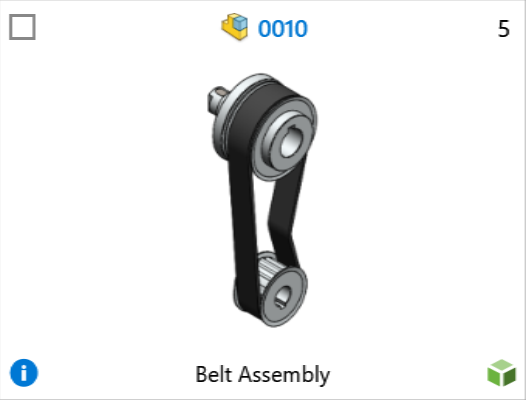
Checked
Checked
Right-clicked, not checked
Important To act on one file only, click Deselect all first. Or use the hover buttons of that item box: Open in SOLIDWORKS on the hover strip always opens only that one file.
Good to know
- Select all checks only the item boxes you can see. Item boxes hidden by the part, assembly or drawing switches stay unchecked.
- Moving to another level, page or search clears all checks.
- Dragging a checked item box drags all checked item boxes.