Database Pane
The Database pane shows what the database holds and gives the tools to keep it right. Open it with the Database icon in the left icon strip.
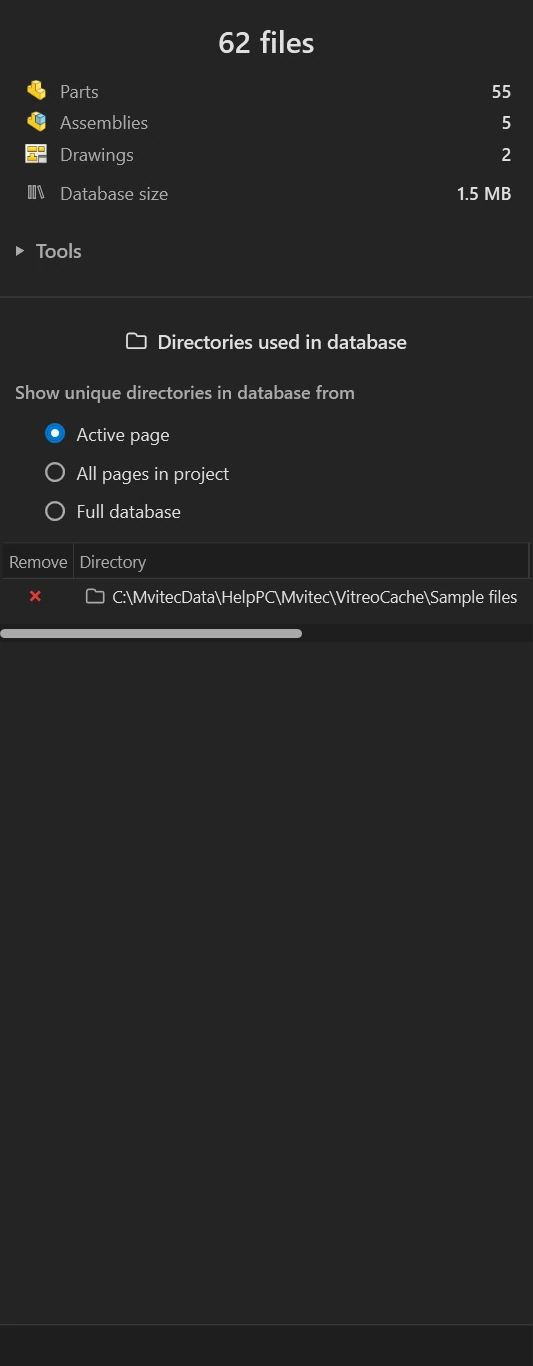
Counts
At the top you see the number of files in the database, split into Parts, Assemblies and Drawings, and the Database size. The counts are for all projects together.
Tools
Click Tools to open the section.
| Button | What it does |
|---|---|
| Sync database | Checks every file in the database against the disk, for all projects. Deleted files are removed, changed files are read again. |
| Recreate | Deletes the stored data and reads the files again. You choose the active project only or all projects. |
| Clear | Removes all data from the database. Files are read again the next time a page loads. |
| Open folder | Opens the folder of the database in Windows Explorer. |
| Compact | Removes unused space from the database file. No data is lost. |
Which one to use: see Sync All, Recreate Project, Recreate Database.
Directories used in database
This list shows every folder Vitreo reads, with its Status, Project and Page. Under Show unique directories in database from choose Active page, All pages in project or Full database.
| Status | It means |
|---|---|
| Found (N files) | The folder is there. |
| Found, M of N files missing (amber) | The folder is there, but some of its files are gone. |
| Folder found, all N files missing (red) | The folder is there, but all its files are gone. |
| Not found (red) | The folder is gone, or moved. See Folders Not Found. |
Rows with a problem are at the top. Right-click a row and choose Open in Windows Explorer to open the folder.
To remove a folder:
- Click the red cross at the start of the row.
- Click Remove to confirm.
Important Remove also takes the folder off the pages of its project. To remove every folder that is not found at once, click Remove not found directories.
Good to know
- The list fills a moment after you open the pane.
- Compact helps after you removed large folders: the database file gets smaller.