Hover Buttons
Point at the preview of an item box. A strip of buttons appears on its left side. The buttons take you from the item box to the next step in one click.
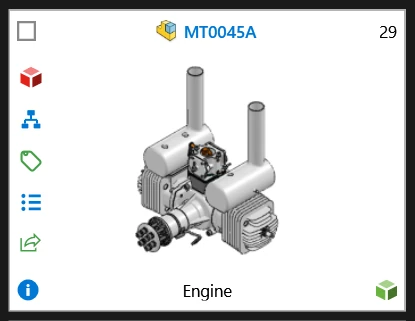
| Button | What it does |
|---|---|
| Open in SOLIDWORKS (red cube) | Opens this file in SOLIDWORKS. |
| Add to File Explorer (blue tree) | Opens the form that adds the item to the File Explorer. See Adding Items to the File Explorer. |
| View properties (green tag) | Puts the item in the File Explorer and opens the Properties tab. |
| View BOM (blue list) | Puts the item in the File Explorer and opens the BOM tab. |
| Export (green arrow) | Puts the item in the File Explorer and opens the Export tab. |
Which items the buttons act on
Open in SOLIDWORKS always opens only the item box you point at. The other four buttons act on the checked item boxes when at least one item box is checked. See Checking Item Boxes.
View properties, View BOM and Export add each item with every file it references, and its drawings.
Important View properties, View BOM and Export empty the File Explorer first. They do not ask. Use Add to File Explorer to keep what is in the list.
Good to know
- A button is not shown when your edition does not include its tab. See Editions.
- On small item boxes the strip has two columns.