Export and Import Projects
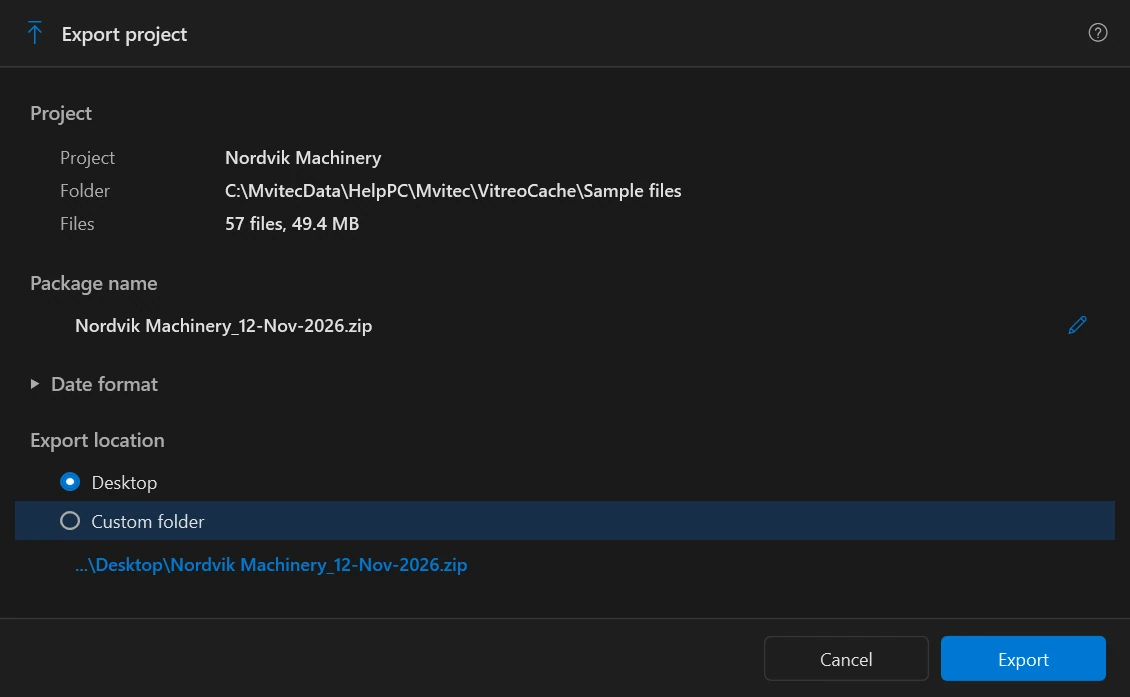
Export a project or a page as one zip file to use it on another PC. The zip holds the settings and every SOLIDWORKS file of its folders, so the other PC needs no access to your folders.
To export a project:
- Right-click the project and choose Export project.
- Check the Package name. Click the pencil to change the name pattern.
- Under Export location, choose Desktop or Custom folder.
- Click Export.
Vitreo writes the zip and opens Windows Explorer with the zip selected. For one page, right-click the page and choose Export page.
Not in the package
This section shows when the project uses files outside its own folders, for example a part from a library folder. These files are not packed. After import, the assemblies that use them open with missing components.
To pack them too, click + next to a folder. The folder is added to the page that uses its files. Add all folders adds them all.
To import a project:
- In the Projects pane, click More options > Import project and pick the zip. Or drop the zip on the Vitreo window.
- Check the Project name.
- Choose the Destination folder. It must be new or empty.
- Click Import.
Vitreo extracts the files with their folder structure, points the project to the new folder and reads the files.
To import a page into a project: right-click the project and choose Import page, then pick a zip made with Export page.
Good to know
- The package name can use
{Project},{Page}and{Date}. An existing zip is never overwritten. - Share settings and publish settings are not in the package.
- An imported page uses the settings of the project you import it into.
- The project or page name must be new. Vitreo shows in red what is wrong and keeps Import off until it is fixed.
- To give only settings and templates to a colleague, without files, see Share Settings.