Columns
The Columns tab decides which properties the grid shows, in which order, and how their cells are edited. Open it with Columns in the toolbar above the grid. Removing or renaming a column never changes your files.
The tab has four sections: Property type (see Custom and Configuration Specific Properties), Columns, Column settings and Find values (see Find Values in Database).
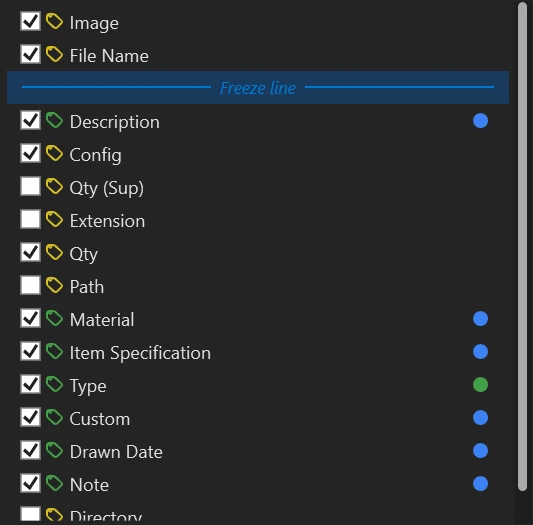
Columns list
Every column of the grid, in grid order. The tag shows the kind: yellow for a file property, green for a custom property, blue for a configuration specific property. The dot shows the cell type: blue Text, green List, yellow List + Edit.
- Check or uncheck a column to show or hide it in the grid.
- Drag a row up or down to change the order.
- Drag the Freeze line row. Columns above it stay in view when you scroll the grid to the right.
- Ctrl+click or Shift+click selects more columns. Delete removes the selected columns.
- Hide unchecked columns leaves the unchecked columns out of this list.
Column commands
Click the three dots at the right of the Columns header, or right-click in the list.
| Command | What it does |
|---|---|
| Add columns > New column | Adds one column with a name you type, of the current property type. |
| Add columns > From project files | Shows every property name in the files of the project, your columns checked. Checked names become columns, unchecked columns are removed. |
| Add columns > Import from file | Reads the property names of one part or assembly you pick, for example a template file. |
| Add columns > Import from project | Replaces all columns with the columns of another project. You confirm first. |
| Rename column | For a property column: Vitreo then reads and writes the property with the new name. For a file property column: only the header text changes. |
| Duplicate column | Adds a copy right after the column. The name is the next in the series, for example Revision_C becomes Revision_D. |
| Delete columns | Selected column, Unchecked columns or All columns. File property columns stay. |
| Sort A-Z | Puts the property columns in alphabetical order. Your own order is lost. |
Important Rename column changes which property the column edits. It is not a label. To change a property name in your files, use Rename Properties.
Column settings
Select a property column in the list, then open Column settings.
| Type | Cell |
|---|---|
| Text | A plain text box. Type any value. |
| List | A list. Only a value from List values can be chosen. |
| List + Edit | A list with a text box. Pick a value or type your own. |
For List and List + Edit, type one value per line in List values. Sort A-Z sorts the box. Click Save to store the values.
Good to know
- The columns, their order, the Freeze line and the settings are saved per project.
- A new column shows empty cells for files that do not have the property.