Live Changes
While Vitreo is open, it watches the folders of the active page. When you save a file in SOLIDWORKS, Vitreo reads it again and updates the item box and the grids by itself.
What Vitreo follows
| You do | Vitreo does |
|---|---|
| Save a file in SOLIDWORKS | Reads it again about a second after SOLIDWORKS releases the file. |
| Add a file to a watched folder | Adds it to the database. |
| Delete a file | Its item box shows Not found on disk. |
| Rename a file in Windows Explorer | The old name shows Not found on disk. The new name is a new file. |
| Delete, move or rename a folder | Notices it. The page reloads when the folder comes back, also after a restore from the Recycle Bin. |
While Vitreo updates, the status bar shows Updating the database with the file count, then Ready.
1. Save in SOLIDWORKSBracket.SLDPRT
→
2. Vitreo waitsuntil SOLIDWORKS is done with the file, about a second
→
3. The item box updates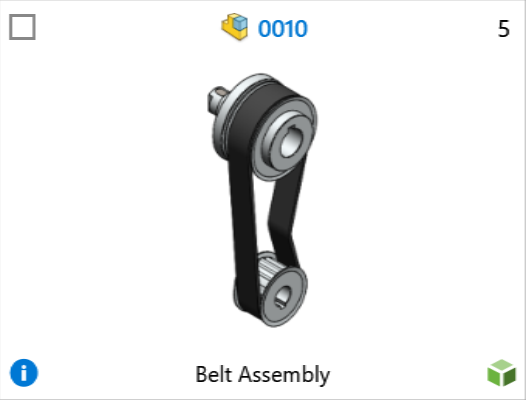
Important Vitreo does not follow a rename done in Windows Explorer. A home item renamed this way shows Not found on disk. Add the file with its new name to the page again. Assemblies and drawings that use the file also lose it in SOLIDWORKS. To make a copy with a new name and keep the references, use Copy and Rename.
Good to know
- Only the folders of the active page are watched. Changes in other folders show the next time you open that page.
- A file that is still being written, or still empty, is waited for.
- When a network drive or VPN drops, for example after sleep, Vitreo waits until the folder answers again. Then it checks the page once. Changes can show a little later.
- When Windows lost track of changes, Vitreo checks the whole page again.
- To check every file of every project at once, see Sync All, Recreate Project, Recreate Database.