BOM Overview
The BOM tab lists the parts and assemblies you checked in the File Explorer, each with its total quantity. Use it to check a parts list and to export it.
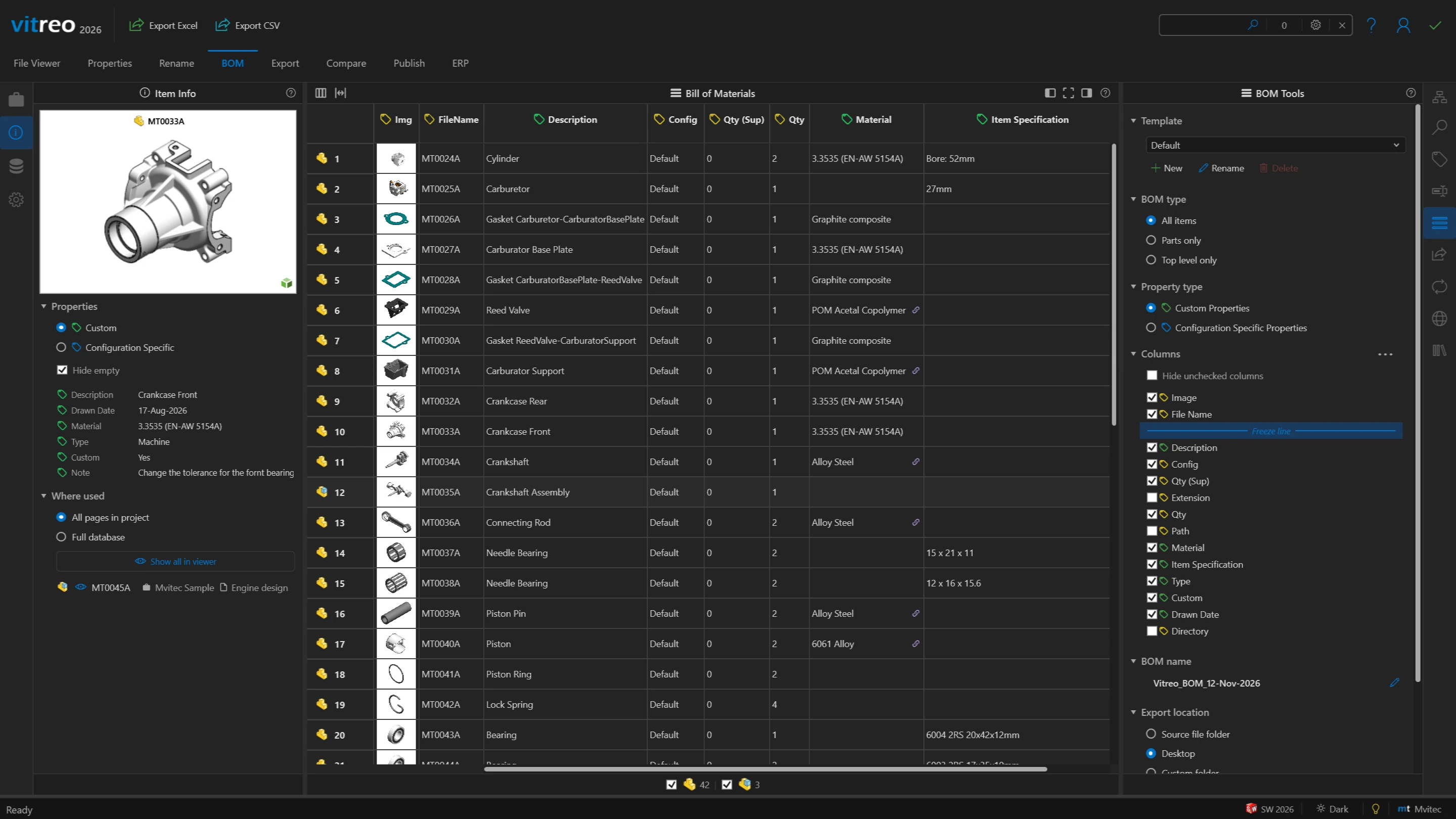
To see the BOM of an assembly:
- Add the assembly to the File Explorer.
- Check the items you want in the BOM. See Check Boxes and Type Boxes.
- Click the BOM tab.
- In the BOM Tools pane, pick a Template and a BOM type.
What feeds the BOM
- The checked items. Only items checked in the File Explorer are in the BOM. Uncheck an item to leave it out.
- The BOM type. It decides which rows you see and how quantities add up. See BOM Type.
- Order as one article. An assembly you order as one piece shows a teal box instead of the SOLIDWORKS icon. The parts inside it are not counted. See Order as One Article.
The Qty column is the total quantity over the whole structure. Vitreo multiplies through every level and adds up every place a file is used.
Good to know
- The grid is read-only. Edit property values in the Properties tab.
- Drawings never appear in the BOM.
- Rows are sorted by file name until you click a column header.
- With no items in the File Explorer you see Make a selection first.
- The BOM tab needs a Professional or Premium license. See Editions.