Properties Overview
The Properties tab has three parts: the buttons in the command bar, the Property Manager grid in the center and the Property Manager Tools pane on the right.
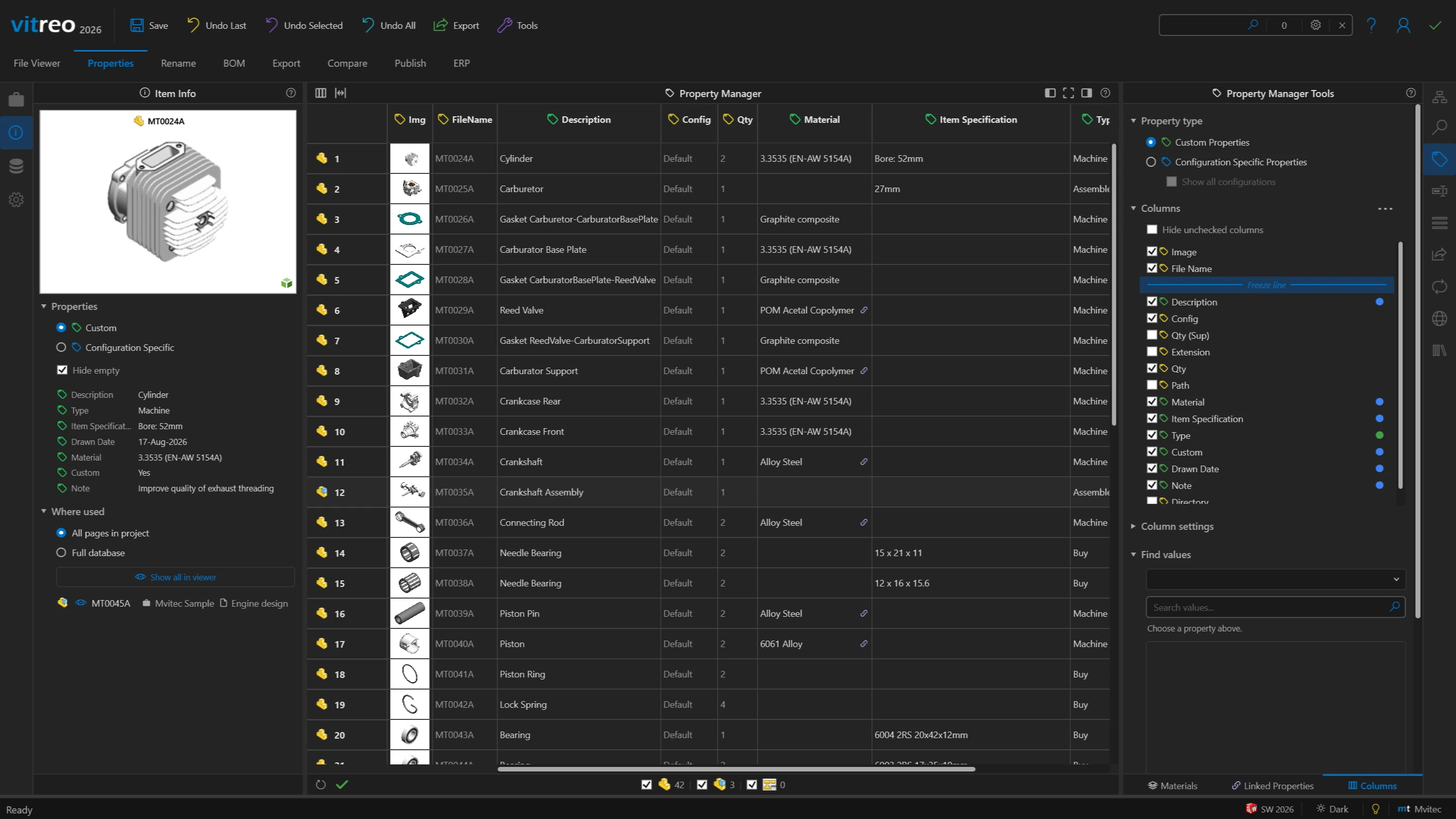
To change the properties of your files:
- Add the files to the File Explorer and check them.
- Click the Properties tab.
- Change the values in the cells. A changed cell turns orange.
- Click Save.
What you see
| Part | What it does |
|---|---|
| Command bar | Save, Undo Last, Undo Selected, Undo All, Export and Tools. |
| Property Manager | The grid. One row per part or assembly, one column per property. |
| Toolbar above the grid | Columns opens the Columns tab. Fit columns sets every column to the width of its content. Hide empty columns leaves out the property columns without a value (see Rows and Columns). On the right: hide or show the left panel, expand the center, hide or show the right panel. |
| Bottom bar, left | Check again and the state of the files: a green check, or chips for locked rows. |
| Bottom bar, center | Check boxes with counts. Uncheck parts, assemblies or drawings to hide their rows. |
| Property Manager Tools | The tabs Materials, Linked Properties and Columns. See Property Manager Tools. |
Good to know
- The rows are the checked parts and assemblies of the File Explorer, at every level. Each file shows once. Drawings are not shown.
- At the start the rows are sorted by file name.
- Click a row to see its file in the Item Info pane.
- With an empty File Explorer you see Make a selection first.
- The counts in the bottom bar count files, not rows.
- Rows you hide with the bottom bar check boxes are never changed by paste, fill, clear or Replace All. Every type is shown again when the grid loads.