Files Need Attention
When Vitreo finds a problem in your SOLIDWORKS files, the status bar shows an amber sign with 1 file needs attention or N files need attention. These problems can cause wrong quantities in the BOM, so fix them.
To see and fix the problems:
- Click N files need attention in the status bar. The form Some files need attention opens.
- Read the line under each group. It says what to do.
- Click the red cube on a row to open the file to fix in SOLIDWORKS.
- Fix the file in SOLIDWORKS and save it.
- The row disappears when Vitreo has read the saved file. The form can stay open while you work.
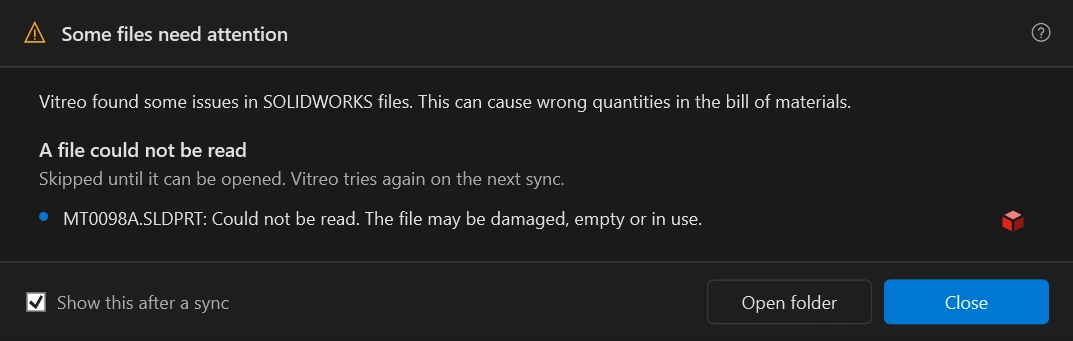
The four kinds of problems
| You see | It means | What to do |
|---|---|---|
| An assembly is not on disk | An assembly uses a subassembly that Vitreo cannot find. Everything inside that subassembly is missing from the lists. | Put the file back. Or fix the reference in SOLIDWORKS and save. |
| A file could not be read | The file is skipped. Vitreo tries again at the next sync. | See Files That Cannot Be Read. |
| An assembly has no contents | Vitreo could not read the components of the assembly. | Open the assembly in SOLIDWORKS, save it and sync again. |
| A configuration does not exist anymore | An assembly uses a configuration of a component that is gone. Vitreo shows another configuration instead. | Open the parent assembly in SOLIDWORKS, pick the right configuration and save. |
For a missing assembly or configuration, the red cube opens the parent assembly. That is where the fix goes.
Good to know
- Open folder opens the folder of the first file that could not be read.
- Show this after a sync: on, the form opens by itself after a sync that found something new. Off, only the status bar sign stays. It is the same as the option in Options.
- The list belongs to the active project. It stays after a restart until the files are read without problems.
- When no problem is known, the form says No file problems known for this project.