Getting Help
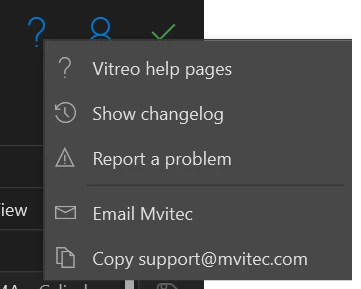
Use the Help menu (the blue question mark in the command bar) to read the help, report a problem or email Mvitec.
The Help menu
| Item | What it does |
|---|---|
| Vitreo help pages | Opens these help pages in your browser. |
| Show changelog | Opens the version history and release notes of Vitreo. |
| Report a problem | Opens a support ticket on mvitec.com. Your product, version, project and page are filled in. |
| Email Mvitec | Opens a new email to support@mvitec.com in your mail program, with your Vitreo version and account filled in. |
| Copy support@mvitec.com | Copies the address, so you can paste it in any mail program. |
To report a problem:
- Click Help > Report a problem.
- Describe what you did, what you expected and what happened.
- Add a screenshot of the message or the screen.
- Send the ticket.
What to send
- The steps that lead to the problem, one by one.
- The exact text of the message. A screenshot is best.
- The Vitreo version. It is in the window title.
- When support asks for it: the file log.txt. It is in %APPDATA%\Mvitec\Vitreo. See Where Vitreo Keeps Its Data.
Tip When the wrong mail program opens, click Copy support@mvitec.com and paste the address in the mail program you use.
Good to know
- The web pages sign you in with your Vitreo account by themselves.
- The web pages need internet. Without internet, Vitreo shows the address so you can open it later.
- Errors in Vitreo are reported to Mvitec by themselves. Support often knows about the error already, but your steps help to find the cause.
- Before you write, check the Troubleshooting pages. Most problems have a fix there.