File Names and Tokens
Every file name editor in Vitreo builds a name from blocks. A block is a value from the file, like its name or a property. Text you type sits between the blocks.
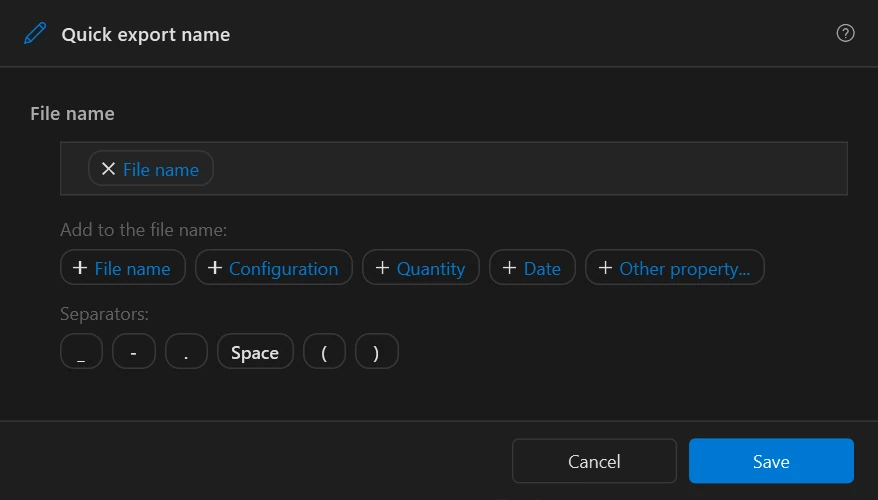
To build a file name:
- Click in the name row where the block must go.
- Under Add to the file name, click a block.
- Under Separators, click
_,-,., Space,(or). Or type text. - Check the Example line.
- Click Save.
Click the x on a block to remove it.
Blocks
| Block | Becomes | Where |
|---|---|---|
| File name | Bracket | All editors |
| Configuration | Default | Export, quick export |
| Quantity | The total quantity in the BOM | Export, quick export |
| Date | Today, in the date format of Vitreo | All editors |
| Project, Page | The project or page name | BOM name |
| Cut list name, Body number, Body quantity | Values of one body | Exports of Bodies |
| Other property... | A custom or configuration specific property | All editors |
Other property... opens a list of the property columns of your project. A property that is not in the list? Choose Type a name... and type the property name.
Missing values
A block without a value is left out, together with one separator next to it. For example File name_Revision_Date gives Bracket_11-Nov-2026 when the part has no revision.
Good to know
- Characters that Windows does not allow in a file name are removed.
- An empty name becomes the file name.
- Backspace at the start of a text piece removes the block before it. Delete at the end removes the block after it.
- The ERP tab uses more blocks. See Tokens.