File Viewer Overview
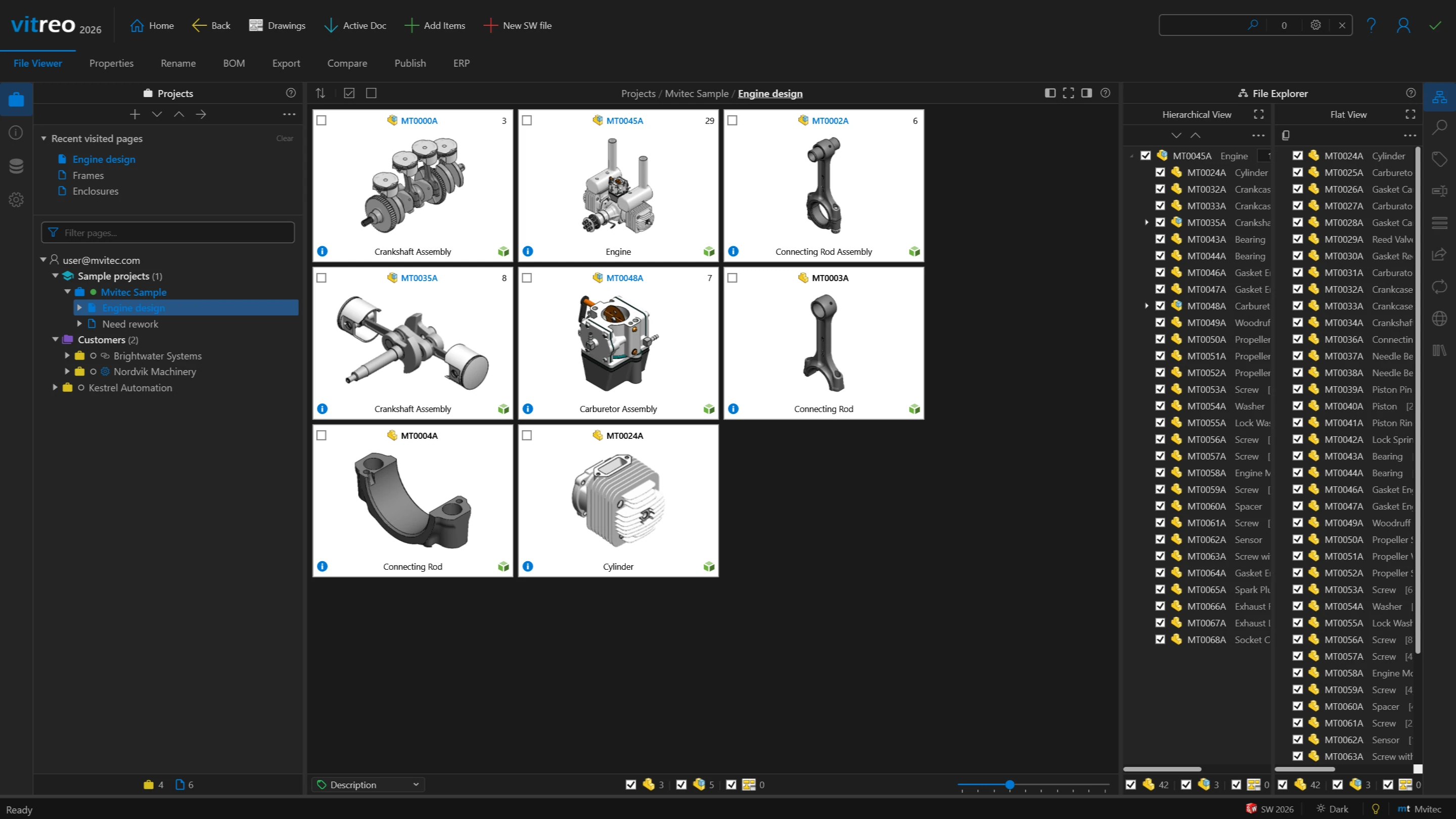
The File Viewer shows the home items of the active page as item boxes. Above and below the item boxes are two thin bars with the tools for this view.
Command bar
When the File Viewer tab is active, the command bar shows these buttons:
| Button | What it does |
|---|---|
| Home | Shows the home items of the active page. |
| Back | Goes back one level or view. See Navigating. |
| Drawings | Shows the drawings next to the items. See Drawings View. |
| Active Doc | Shows the document that is open in SOLIDWORKS. |
| Add Items | Adds a folder or the active SOLIDWORKS document to the page. See Adding Folders and Files. |
| New SW file | Makes a new part, assembly or drawing. See New SOLIDWORKS File. |
Toolbar above the item boxes
- Sort, Select all and Deselect all on the left.
- The navigation bar in the middle: the path to where you are. Click a part of it to go back.
- Three panel buttons on the right: Hide left panel, Expand center. Restore panels and Hide right panel.
Bottom bar
- Card Label Property on the left: the property whose value is shown on every item box. See Item Box Text.
- The part, assembly and drawing check boxes with their counts in the middle. Clear one to hide that type.
- Tile size on the right: makes the item boxes larger or smaller.
Empty screens
Instead of item boxes, you can see one of these texts:
| You see | It means |
|---|---|
| Welcome to Vitreo | There is no project yet. Click New project in the Projects pane, or download the sample project. |
| No project active | Activate a project in the Projects pane. |
| This project has no pages | Right-click the project and choose Add page. |
| Loading page... | Vitreo is loading the page. Wait a moment. |
| This page is empty | Add folders or files with Add Items. |
← File Viewer
Projects →