Settings History
Vitreo keeps a copy of your settings file every day. Use it when projects, pages or columns went wrong and the database is fine.
To go back to an earlier day:
- Open the Settings pane and click Settings history.
- Pick a copy in the list. The newest copy is at the top. Each row shows the date and the number of projects in it.
- Click Restore.
- Click Restore in the Restore settings dialog box.
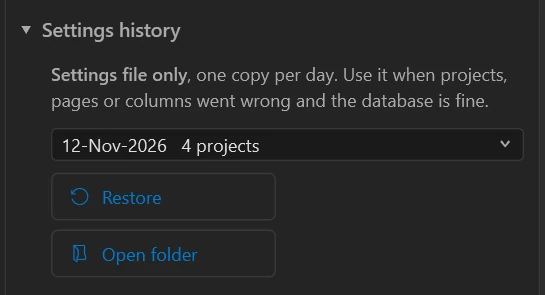
When Vitreo makes a copy
- Once a day, at the first save of the day.
- Before every restore, factory reset and import of settings. These rows say why, for example before restore or before import.
Vitreo keeps the 30 newest copies.
Settings history or backup?
| Settings history | Backup | |
|---|---|---|
| Holds | The settings file only: projects, pages, columns, templates | The settings and the database |
| Made | Automatically, every day | When you click Backup |
| Use it when | Projects, pages or columns went wrong | You want everything back as it was |
See Backup and Restore.
Good to know
- Restore keeps a copy of your current settings first. You can always go back.
- The database is not touched. Item boxes and file data stay as they are.
- Vitreo also sends the restored settings to the server, so the replaced version cannot come back through the sync.
- Open folder opens the folder with the copies in Windows Explorer.
- When the settings file is damaged at start, Vitreo continues with the newest copy. A message tells you which copy it used. The damaged file is kept next to the settings file.